
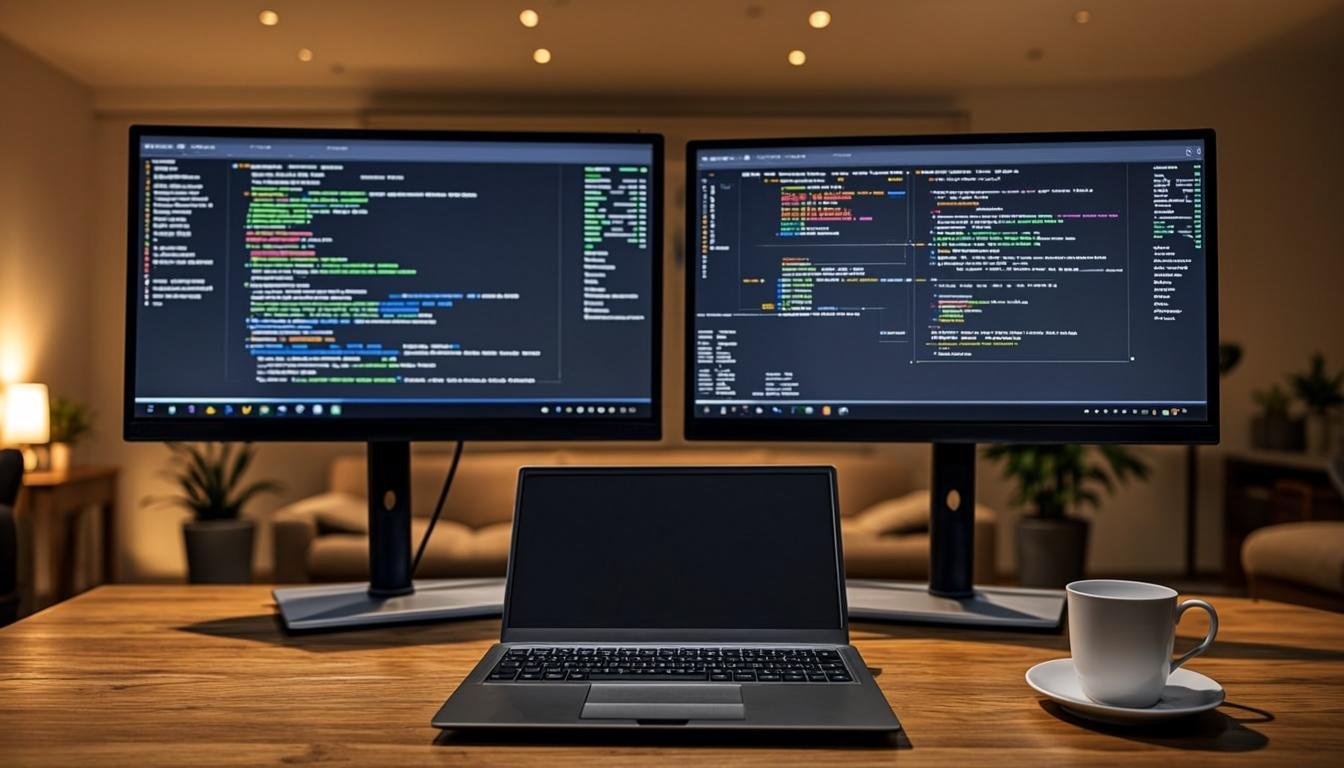

I have been working with a single laptop screen for years. Stupid idea. The moment I added a second monitor, my productivity jumped in ways I didn't expect. Copy-pasting between tabs, referencing research while writing, keeping Slack open without losing my document, all of it got easier overnight.
If you are freelancing full-time or even part-time, a dual monitor setup is not a luxury. It is a basic tool that pays for itself. Let me walk you through everything you need to know about picking the right monitors, stands, cables, and accessories. I will also share some specific product recommendations with real prices so you can budget accordingly.
Why freelancers need two monitors
Think about how you actually work. You probably have a browser open with research, a document open in your word processor, and maybe a messaging app or email client running in the background. On a single screen, you are constantly alt-tabbing between windows. That back-and-forth eats up time. Not a lot per switch, but it adds up over weeks and months.
A second monitor gives you permanent visibility. You can keep your main work on one screen and reference material on the other. If you write blog posts, you can have your research on the left and your draft on the right. If you do web design, you can have your code on one screen and the live preview on the other.
BloggingJobsHub.com is created by an individual to help you find AI, WordPress, Article Writing and Blogging Jobs, and teach you skills to work long-term. Part of working long-term is setting up your workspace properly, and monitors are a big piece of that puzzle.
How to choose the right monitor size
Monitor size matters more than most people think. I have tested setups with 24-inch, 27-inch, and 32-inch screens. Here is what I found.
A 24-inch monitor is compact and affordable. It works well if your desk is not very deep. You can fit two 24-inch monitors side by side on most standard desks. The pixel density on a 1080p 24-inch screen is decent, so text looks sharp enough for writing.
A 27-inch monitor gives you more screen real estate without taking over your desk. At 1440p resolution, a 27-inch screen is probably the sweet spot for most freelancers. Text is crisp, you can fit more windows, and the price has come down a lot in the last couple of years.
A 32-inch monitor is great if you do visual work like photo editing or video production. For text-heavy work like writing and coding, 32 inches at 4K resolution is fantastic because the text stays sharp. But at 1440p, a 32-inch screen can look a bit stretched.
For a dual setup aimed at writing, blogging, and general freelancing, I recommend two 27-inch monitors at 1440p. That is the setup I use daily and it hits the right balance of space, clarity, and cost.
Resolution: 1080p vs 1440p vs 4K
Resolution determines how sharp everything looks on screen. Higher resolution means more pixels, which means crisper text and more detail.
1080p (Full HD) is the budget option. On a 24-inch screen, it looks fine. On a 27-inch screen, text starts to look a little soft, especially if you are staring at it for eight hours a day.
1440p (QHD) is where I would draw the line for serious freelance work. It gives you significantly more workspace than 1080p. You can see more of a document, more of a spreadsheet, or more of a website design without scrolling. Most 27-inch monitors at this resolution are priced between $200 and $350.
4K (UHD) is beautiful but comes with trade-offs. Text on a 27-inch or 32-inch 4K monitor is razor-sharp. The problem is that 4K monitors are more expensive, and they require more GPU power from your computer. If you are working from a laptop, make sure your laptop can actually drive a 4K external monitor at 60Hz. Some older laptops struggle with this.
My recommendation: go with 1440p for your dual monitor setup unless you have a specific reason to go 4K. The price-to-performance ratio is much better.
Panel types explained
Monitor panels come in three main types: IPS, VA, and TN. Each has strengths and weaknesses.
IPS panels offer the best color accuracy and viewing angles. If you look at the screen from the side, colors do not shift. This matters if you do any design work, photo editing, or if you just want text to look consistent across the screen. Most freelancers should get IPS panels.
VA panels have better contrast ratios, meaning deeper blacks. They are great for watching movies and playing games, but for work purposes, the advantage is minimal. VA panels can also suffer from smearing with fast-moving content.
TN panels are the cheapest and fastest. They have poor viewing angles and washed-out colors. I would not recommend TN panels for a work setup unless you are on an extremely tight budget.
Go with IPS. The price difference is small and the quality improvement is noticeable.
Refresh rate: does it matter for work?
Refresh rate measures how many times per second the screen updates. Standard monitors are 60Hz. Gaming monitors go up to 144Hz, 240Hz, or higher.
For writing, blogging, and most freelance work, 60Hz is perfectly fine. You will not notice a difference in text clarity or scrolling smoothness in your word processor.
However, if you also do web development or design and you want smoother scrolling on web pages, a 75Hz or even 90Hz monitor can feel slightly better. The price jump from 60Hz to 75Hz is usually small.
I would not pay extra for 144Hz unless you game in your off hours. For a pure work setup, save that money and put it toward a better stand or a keyboard instead.
Top dual monitor picks for freelancers
I have researched and compared dozens of monitors. Here are the ones I think are worth your money.
Dell UltraSharp U2723QE
This is a 27-inch 4K IPS monitor with USB-C connectivity. It costs around $520. The color accuracy is excellent with factory calibration. It has a built-in USB hub, which means you can plug your laptop into the monitor with a single USB-C cable and get power, video, and data all at once.
This is ideal if you use a MacBook or a USB-C laptop. One cable to dock, one cable to undock. The stand is adjustable for height, tilt, swivel, and pivot.
LG 27GP850-B
This is a 27-inch 1440p IPS monitor at 165Hz. It sells for about $350. Originally designed for gaming, it works great for work too. The colors look great, the response time is fast, and the 1440p resolution is the sweet spot for productivity.
The downside is that it does not have USB-C. You will need to use DisplayPort or HDMI and deal with separate cables for power and peripherals.
Dell S2722QC
A 27-inch 4K IPS monitor that costs around $330. This is one of the best budget 4K options. It has USB-C with 65W power delivery, so it can charge your laptop while displaying video. The stand is basic but functional, allowing height and tilt adjustment.
If you want 4K without spending over $500, this is the monitor to get.
ASUS ProArt PA278CV
A 27-inch 1440p IPS monitor designed for creative professionals. It costs about $350 and offers factory-calibrated color accuracy with Delta E less than 2. It has USB-C with 65W power delivery, a built-in USB hub, and an ergonomic stand.
This is one of my top picks for freelancers who do any visual work alongside writing.
Budget pick: AOC 24G2SPU
If you are just starting out and want to keep costs low, this 24-inch 1080p IPS monitor sells for about $150. It is a 165Hz panel, which is more than you need, but the IPS quality is solid for the price. The stand only tilts, so you might want to pair it with a monitor arm.
Ultra-wide alternative: LG 34WN80C-B
Instead of two separate monitors, you could go with a single 34-inch ultra-wide. This one is 1440p, IPS, USB-C with 96W power delivery, and costs about $600. An ultra-wide eliminates the bezel gap between screens, which some people prefer.
The trade-off is less total screen area compared to two 27-inch monitors, and ultra-wide monitors are harder to find window positions for.
Monitor arms and stands
The stands that come with monitors are usually fine, but a monitor arm gives you much more flexibility. You can push the monitors out of the way when you need desk space, adjust the height to match your eye level, and angle them to reduce neck strain.
Ergotron LX Dual Stacking Arm
This is the gold standard for dual monitor arms. It costs about $280 and holds two monitors up to 27 inches. The build quality is excellent, and the arm moves smoothly. It clamps to your desk and frees up the entire desk surface.
Amazon Basics Dual Monitor Arm
A budget option at around $45. It holds two monitors up to 27 inches and supports up to 22 pounds per arm. The build quality is not as premium as Ergotron, but it works. I have used this arm for over a year without issues.
WALI Dual Monitor Mount
Another budget pick at about $35. Similar to the Amazon Basics arm, it supports two monitors up to 27 inches. The gas spring mechanism is decent but can be a bit stiff on arrival. Once adjusted, it holds position well.
Single monitor arms
If you prefer to use the stand that came with one monitor and add an arm for the second, check out the Single Monitor Desk Mount from Amazon Basics at about $20. It is simple, cheap, and does the job.
Cables and adapters
Getting the right cables is more confusing than it should be. Here is what you need to know.
If your laptop has USB-C with DisplayPort Alt Mode, you can use a USB-C to DisplayPort cable or a USB-C to HDMI cable to connect to your monitors. This is the cleanest setup because it carries video and sometimes power in one cable.
If your laptop has regular HDMI or DisplayPort, you will need standard HDMI or DisplayPort cables. DisplayPort 1.4 supports up to 4K at 60Hz, which is what most monitors need.
For dual monitors, check how many video outputs your laptop has. Many laptops only have one HDMI port and one USB-C port. In that case, you might need a USB-C hub or docking station with multiple video outputs.
Recommended dock: CalDigit TS4
The CalDigit TS4 is a Thunderbolt 4 dock that costs about $400. It has 18 ports including three Thunderbolt 4 downstream ports, multiple USB-A ports, DisplayPort, Ethernet, and audio. It can drive two 4K monitors or one 8K monitor.
This is overkill for most freelancers, but if you have a Thunderbolt-equipped MacBook and want the most capable dock available, this is it.
Budget dock: Anker 555 USB-C Hub
At about $55, this USB-C hub gives you two HDMI ports (supporting dual monitors at 1080p), three USB-A ports, SD card readers, and 100W power delivery. It is not as fast as a Thunderbolt dock, but it works for most dual monitor setups.
Cable recommendations
Amazon Basics cables are reliable and cheap. Get a 6-foot DisplayPort 1.4 cable for about $8, or a 6-foot USB-C to DisplayPort cable for about $12. Do not fall for expensive "premium" cables. Digital signals either work or they do not. A $8 cable and an $80 cable will deliver the exact same picture.
Desk considerations
Your dual monitor setup is only as good as the desk it sits on. Two 27-inch monitors side by side need about 48 inches of desk width minimum. Add some space for a keyboard and mouse, and you are looking at a desk that is at least 55 to 60 inches wide.
Standing desk: FlexiSpot E7
The FlexiSpot E7 is a solid electric standing desk that costs about $400 for a 60-inch width. It supports up to 335 pounds, which is more than enough for two monitors, a laptop, and accessories. The motor is quiet and the desk height adjusts from 24.8 to 50.4 inches.
Budget desk: IKEA LINNMON
The IKEA LINNMON table is about $50 for a 59-inch wide surface. It is not height-adjustable, but it is cheap, wide enough for dual monitors, and comes in several finishes. Pair it with the ALEX drawer unit for storage.
Monitor riser: Rain Design mStand
If you are using a laptop as your primary computer and adding an external monitor, the mStand lifts your laptop to eye level. It costs about $45 and is made of aluminum. Your laptop sits at a comfortable height and the stand looks clean on your desk.
Lighting matters more than you think
A great dual monitor setup can be ruined by bad lighting. Glare on your screens causes eye strain and headaches. If you have a window behind your monitors, you will see reflections. If you have overhead lights directly above your screens, you will see hotspots.
Position your desk so that windows are to your left or right, not directly in front of or behind your monitors. Use blinds or curtains to control direct sunlight. And consider a monitor light bar.
BenQ ScreenBar
The BenQ ScreenBar sits on top of your monitor and shines light down onto your desk without causing screen glare. It costs about $110. It has adjustable color temperature and brightness, and it does not take up any desk space because it hangs off the top of the monitor.
Budget alternative: Glocusent LED Neck Reading Light
At about $25, this wearable light sits around your neck and directs light onto your workspace. It is not as elegant as a monitor light bar, but it works well and you can use it anywhere, not just at your desk.
Keyboard and mouse for dual monitor workflow
When you have two monitors, your keyboard and mouse are the bridge between them. A good keyboard makes typing comfortable during long writing sessions, and a good mouse reduces wrist strain.
Keyboard: Keychron K2
The Keychron K2 is a wireless mechanical keyboard with a Tenkeyless layout. It costs about $70 and connects via Bluetooth or USB-C. It has tactile switches that feel great for typing, and the battery lasts for weeks. The compact size leaves more room on your desk for your mouse.
Keyboard: Logitech MX Keys S
If you prefer a low-profile keyboard, the MX Keys S costs about $100. It is a slim wireless keyboard with backlit keys, multi-device support, and USB-C charging. The typing feel is surprisingly good for a membrane keyboard.
Mouse: Logitech MX Master 3S
The MX Master 3S is the best productivity mouse I have used. It costs about $100 and has a scroll wheel that can spin freely for long documents, a thumb scroll wheel for horizontal scrolling, and customizable buttons. It works on any surface, including glass.
The horizontal scroll wheel is particularly useful with dual monitors. You can scroll across wide spreadsheets or timelines without using the scroll bar.
Software tips for dual monitor use
Hardware is only half the equation. How you arrange your software matters just as much.
Window management
Windows 10 and 11 have built-in snap features. Drag a window to the left edge of a screen and it snaps to the left half. Drag to the right edge and it snaps to the right half. Windows 11 even has Snap Layouts that appear when you hover over the maximize button.
On macOS, you can use the built-in tile windows feature or third-party apps like Rectangle (free) or Magnet ($3). These apps let you assign keyboard shortcuts to move and resize windows between monitors.
Virtual desktops
If you run out of screen space even with two monitors, virtual desktops can help. Both Windows and macOS support multiple desktops. You can keep your writing apps on one desktop and your communication apps on another, switching between them with a keyboard shortcut.
Taskbar and dock placement
On Windows, you can choose which monitor shows the taskbar. In Settings, go to Personalization, then Taskbar, then Taskbar behaviors. Check the box for "Show my taskbar on all displays" or choose just the primary monitor.
On macOS, the dock appears on whichever monitor you last interacted with by default. You can change this in System Settings under Desktop and Dock.
Setting up your monitors for writing and blogging
If your main freelance work involves writing, blogging, or content creation, here is how I would configure a dual monitor setup.
Left monitor: Your research browser, reference documents, and note-taking app. This is your input screen where you gather information.
Right monitor: Your word processor, CMS editor, or code editor. This is your output screen where you produce content.
This left-right arrangement works with the natural reading direction for English and other left-to-right languages. Your eyes naturally flow from left to right, from research to writing.
If you use a CMS like WordPress, keep the WordPress editor maximized on your right screen and have your SEO tool, research tabs, and image folder on the left screen. You will spend less time switching windows and more time writing.
Eye care and ergonomics
Two monitors mean twice the screen exposure. Take care of your eyes.
Set your monitor brightness to match your room lighting. A screen that is significantly brighter than your room causes eye fatigue. Most monitors have a brightness setting, and some have an auto-brightness feature.
Follow the 20-20-20 rule. Every 20 minutes, look at something 20 feet away for 20 seconds. This gives your eye muscles a break from focusing at a fixed distance.
Position your monitors so the top of the screen is at or slightly below eye level. Your eyes should naturally look slightly downward at the center of the screen. This reduces neck strain.
Keep your monitors about an arm's length away. Closer than that and you might experience eye strain. Further than that and you will be squinting at text.
Use blue light filters if you work late. Most monitors have a low blue light mode, and both Windows and macOS have built-in night light features. These reduce the amount of blue light emitted, which can help you sleep better if you work in the evening.
Dual monitor setup for different freelance roles
Not all freelancers use their monitors the same way. Here are some specific recommendations based on the type of work you do.
Writers and bloggers
Two 27-inch 1440p IPS monitors. Left screen for research, right screen for writing. A monitor light bar to reduce eye strain. A good mechanical keyboard for comfortable typing. Total budget: around $600 to $900 including monitors, stand, and accessories.
Graphic designers
Two 27-inch 4K IPS monitors with high color accuracy (99% sRGB or better). A monitor arm for precise positioning. A graphics tablet like the Wacom Intuos ($70). Total budget: around $1000 to $1300.
Web developers
One 27-inch monitor in portrait mode for code, and one 27-inch or 32-inch monitor in standard orientation for browser preview. Both at 1440p or 4K. Total budget: around $700 to $1100.
Virtual assistants and project managers
Two 24-inch or 27-inch monitors at 1080p or 1440p. Keep email and communication apps on one screen, project management tools and documents on the other. Total budget: around $300 to $600.
Total cost breakdown
Here is a realistic budget for a complete dual monitor setup.
Budget setup (two 24-inch 1080p monitors):
- 2x AOC 24G2SPU monitors: $300
- Amazon Basics Dual Monitor Arm: $45
- Cables: $20
- Total: about $365
Mid-range setup (two 27-inch 1440p monitors):
- 2x ASUS ProArt PA278CV monitors: $700
- Ergotron LX Dual Arm: $280
- Cables: $25
- Total: about $1005
Premium setup (two 27-inch 4K monitors):
- 2x Dell UltraSharp U2723QE monitors: $1040
- Ergotron LX Dual Arm: $280
- Cables: $30
- Total: about $1350
These prices are approximate and change over time. Check current prices before buying. You can often find monitors on sale, especially during events like Amazon Prime Day or Black Friday.
Common mistakes to avoid
I have made several mistakes setting up my own dual monitor rig. Learn from them so you do not have to.
Buying mismatched monitors. If you buy two different monitors, the color, brightness, and size difference will bother you more than you expect. Get two of the same model if possible.
Forgetting about the power strip. Two monitors, a laptop charger, a desk lamp, speakers, and a phone charger add up fast. Get a power strip with at least 8 outlets and USB charging ports. I use the Anker PowerPort Strip with 6 AC outlets and 4 USB ports, which costs about $30.
Ignoring ergonomics. A $1000 monitor setup on a cheap, wobbly desk at the wrong height will still cause neck and back pain. Invest in your desk and chair too.
Not checking laptop compatibility. Before buying monitors, check what video outputs your laptop has and what resolutions they support. Some laptops can only drive one external monitor natively. Others can drive two, but only at 1080p.
Buying a monitor arm that is too weak. Check the weight of your monitors and compare it to the arm's weight capacity. A 27-inch monitor typically weighs 10 to 15 pounds with the stand removed. Make sure the arm can handle that.
Is it worth the investment?
A dual monitor setup is an investment in your productivity. If you freelance full-time, even a 10% productivity increase pays for the monitors within a few months. The time you save from not alt-tabbing, the reduced eye strain, and the more comfortable working position all contribute to better work and fewer breaks.
For part-time freelancers, the math is a bit different. If you only work 10 hours a week, a dual monitor setup might not be necessary. A single good monitor might be enough. But if you plan to scale up your freelance work, setting up your workspace properly from the start makes the transition smoother.
Check out more remote work tips and job opportunities at BloggingJobsHub.com to keep building your freelance career.
FAQ: Best dual monitor setup for freelancers
What size monitors are best for a dual setup?
Two 27-inch monitors at 1440p resolution give you the best balance of screen space, text clarity, and price. They fit on most desks and provide enough room for comfortable multitasking.
Do I need a special graphics card for dual monitors?
Most modern laptops and desktops can handle dual monitors without a problem. Check your device specifications for the number of video outputs. If you have one HDMI and one USB-C port, you can connect two monitors. If you only have one video output, you may need a docking station.
Is 1440p enough for freelance work or should I go 4K?
1440p is enough for most freelance work including writing, coding, and general tasks. 4K gives you sharper text and more detail, which is nice but not essential. If you do visual work like photo editing, 4K is worth the extra cost.
Should both monitors be the same model?
Yes, if possible. Matching monitors have the same color, brightness, and physical dimensions, which creates a more comfortable and consistent workspace. If your budget does not allow matching monitors, try to match at least the size and resolution.
Can I use a laptop screen as one of the two monitors?
Yes, many freelancers use their laptop screen as the secondary monitor and add one external monitor. This is a good way to start. If you want both monitors to be the same size, you can close the laptop and use two external monitors with an external keyboard and mouse.
How much desk space do I need for two monitors?
Two 27-inch monitors side by side need about 48 inches of desk width. With some margin, a 55 to 60 inch wide desk is ideal. If your desk is narrower, consider two 24-inch monitors, which need about 42 inches.
Are monitor arms worth buying?
Monitor arms are worth it if you want to save desk space, adjust your monitors to the perfect height, or use a monitor in portrait mode. They cost $35 to $280 depending on quality, and they make a big difference in comfort.
What is the difference between USB-C and Thunderbolt for monitors?
USB-C with DisplayPort Alt Mode carries video, data, and power over a single cable. Thunderbolt does the same but with higher bandwidth, allowing for more monitors and faster data transfer. For most dual monitor setups, USB-C is sufficient. Thunderbolt is mainly useful for MacBook users who want to connect multiple high-resolution monitors through a single dock.
How do I reduce eye strain with dual monitors?
Set monitor brightness to match room lighting, follow the 20-20-20 rule, position monitors at arm's length with the top at eye level, and use a monitor light bar instead of desk lamps. Blue light filters in the evening help too.
Should I get a curved monitor instead of two flat monitors?
Curved ultra-wide monitors are an alternative to dual flat monitors. They eliminate the bezel gap and can feel more involving. However, they offer less total screen area than two separate monitors and are harder to manage window placements on. For most productivity tasks, two flat monitors are more practical.
Final thoughts
Setting up a dual monitor workstation is one of the best things you can do for your freelance productivity. It does not have to be expensive, and even a budget setup makes a huge difference compared to working on a single laptop screen. Start with what you can afford and upgrade over time. Your eyes, neck, and output quality will thank you.
For more tips on building a sustainable freelance career, visit BloggingJobsHub.com where you can find remote job listings and skill-building resources.