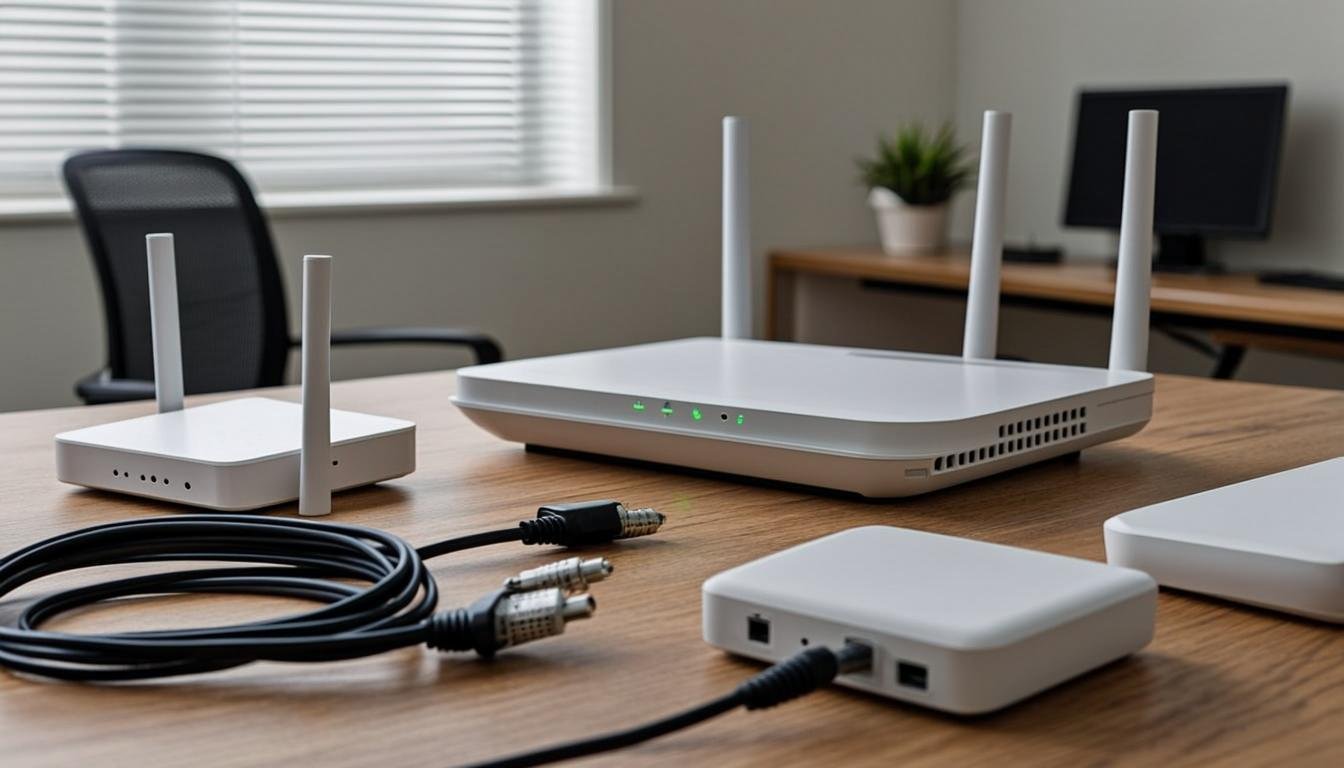

I spent three years working remotely on a connection that dropped every time the microwave ran. That taught me more about internet setups than any tech guide ever could.
When you work from home, your internet is your office. It is the difference between a productive Tuesday and a day spent staring at a frozen Zoom screen. Most remote workers underestimate this until something goes wrong.
BloggingJobsHub.com is created by an individual to help you find AI, WordPress, Article Writing and Blogging Jobs, and teach you skills to work long-term. And I can tell you from experience: the right internet setup is one of those skills nobody talks about enough.
Let me walk you through what actually works. Not theory. Real setups from someone who has tested them.
Why Your Internet Setup Matters More Than You Think
Here is the thing about remote work. You are competing with people in offices who have IT departments and enterprise connections. Your internet speed and reliability directly affect how much work you can get done.
A study by Buffer found that 20% of remote workers struggle with unreliable internet. That is one in five people. And most of them never fix it properly. They just live with it.
Slow internet does not just waste time. It costs you money. Missed deadlines. Lost clients. Bad impressions on video calls. The kind of stuff that makes the difference between getting rehired and getting ghosted.
I am not saying you need a thousand-dollar setup. But you do need to think about this more carefully than "the faster the better." Let me break down what actually matters.
How Much Speed Do Remote Workers Actually Need
Everyone wants to know the magic number. What speed should I get?
It depends on what you do. If you write blog posts and send emails all day, you can get by with 25 Mbps download. Seriously. Writers do not need fiber optic connections.
But if you are on video calls for hours, editing large files, or working with cloud-based tools, the math changes. Here is what I recommend based on the type of work:
Light remote work (email, writing, basic browsing): 25-50 Mbps download, 5 Mbps upload
Standard remote work (video calls, document editing, light file sharing): 50-100 Mbps download, 10 Mbps upload
Heavy remote work (video editing, large file transfers, multiple video calls): 100-300 Mbps download, 20+ Mbps upload
Power users (developers, designers working with massive files): 300+ Mbps download, 50+ Mbps upload
The upload speed matters way more than most people realize. When you are on a video call, you are sending your face to the world. If your upload is slow, everyone sees you as a pixelated mess.
I learned this the hard way during a client pitch. My download was 200 Mbps. My upload was 3 Mbps. Guess what the client remembered? The frozen guy on their screen.
Understanding Internet Types for Remote Work
Cable Internet
Cable is what most people have. It runs through the same lines as your TV service. Speeds usually range from 50 to 1,000 Mbps depending on your provider and plan.
The big advantage of cable is availability. It is almost everywhere. The disadvantage is that it is a shared connection. When your neighbors get home and start streaming Netflix, your speeds can drop.
For remote work, cable is perfectly fine in most situations. Just do not get the cheapest plan your ISP offers. Go for at least 100 Mbps if you can.
Current cable internet prices in the US:
- Xfinity (Comcast): $25-$60/month for 75-300 Mbps (first year promo, then goes up)
- Spectrum: $50-$70/month for 300-500 Mbps
- Cox: $50-$80/month for 100-500 Mbps
- Mediacom: $30-$60/month for 60-300 Mbps
Fiber Optic Internet
Fiber is the gold standard. It uses light signals through glass cables, which means it is fast, reliable, and symmetrical (your upload speed matches your download speed).
If fiber is available at your address, get it. Period. There is no debate here. Fiber connections are less prone to outages, have lower latency, and do not suffer from the neighborhood congestion problem that cable does.
Fiber prices:
- AT&T Fiber: $55-$80/month for 300-1,000 Mbps (500 Mbps is $55)
- Verizon Fios: $50-$90/month for 300-1,000 Mbps
- Google Fiber: $50-$70/month for 500-1,000 Mbps (100 Mbps plan is $30)
- CenturyLink (Lumen): $50-$75/month for 100-940 Mbps
The downside? Fiber is not available everywhere. Only about 43% of US households can get it. Check BroadbandNow.com to see what is available at your address.
DSL Internet
DSL uses your phone lines. It is older technology and generally slower than cable or fiber. Most DSL connections top out at 25-100 Mbps.
I would not recommend DSL for remote work unless it is your only option. The speeds are usually too low for reliable video calls, and the connection quality can vary a lot depending on how far you are from the provider's equipment.
Prices are lower though. AT&T DSL starts around $30/month. But you get what you pay for.
5G Home Internet
5G home internet is relatively new and it is getting better fast. Providers like T-Mobile and Verizon offer 5G home internet using a gateway device that picks up cellular signals.
This can work surprisingly well for remote work. Speeds typically range from 50 to 300 Mbps. And there are no data caps on most plans.
T-Mobile 5G Home Internet: $50/month (with AutoPay), 33-182 Mbps typical speeds. No annual contract.
Verizon 5G Home Internet: $50-$70/month, 85-1,000 Mbps typical speeds depending on your location.
Starlink: $110/month plus $349 equipment fee, 50-220 Mbps typical speeds. Best option if you live in a rural area with no other choices.
The catch with 5G home internet is that speeds vary wildly based on location. Your neighbor might get 200 Mbps and you might get 30 Mbps. It depends on tower proximity, building materials, and terrain.
Routers That Actually Work for Remote Workers
Your ISP will give you a modem and maybe a basic router. That basic router is almost always garbage. It works, but barely. Replacing it is one of the easiest upgrades you can make.
Best Router for Most Remote Workers: TP-Link Archer AX73
Price: $130-$150
This is the router I recommend to most people. It supports Wi-Fi 6, has six antennas, and covers up to 2,500 square feet. It handles 15-20 devices without breaking a sweat.
I bought one for my home office last year. My dead zones disappeared. Video calls stopped dropping. And the setup took about ten minutes.
The Archer AX73 supports MU-MIMO (multiple users, multiple input, multiple output), which means it can talk to several devices at once instead of making them take turns. This matters if you have a laptop, phone, tablet, and smart TV all connected.
Best Budget Router: TP-Link Archer AX21
Price: $60-$80
If you do not want to spend over $100 on a router, this one gets the job done. It covers about 1,500 square feet and supports Wi-Fi 6. Not as many features as the AX73, but solid performance for the price.
Best for Large Homes: ASUS RT-AX86U
Price: $170-$200
This router is a beast. It covers up to 3,000 square feet and has a dedicated gaming band. The web interface is actually good, which is rare for routers.
I put one of these in a friend's three-story house. Every room gets full signal. Even the basement office where he works.
Best Mesh System: Google Nest Wifi Pro
Price: $200 for one unit, $300 for two, $400 for three
If you have a large house or a layout with thick walls, a mesh system is the way to go. Instead of one router, you place multiple units around your home. They work together to blanket your space with coverage.
The Nest Wifi Pro is easy to set up and manage through the Google Home app. Two units cover about 4,000 square feet. Three units cover up to 5,400 square feet.
Other mesh options worth looking at:
- Eero Pro 6E: $200-$500 depending on pack size. Excellent if you want simplicity.
- Netgear Orbi RBK753: $350-$400 for a three-pack. Great performance, more technical setup.
Modems: Should You Buy Your Own
Most ISPs charge you $10-$15/month to rent their modem. Over two years, that adds up to $240-$360. You can buy your own for less than that.
For cable internet, the Motorola MB8600 ($100-$120) is one of the best options. It supports DOCSIS 3.1, which means it can handle gigabit speeds and beyond. I have used this modem for two years with zero issues.
For fiber internet, you usually cannot use your own modem. Fiber requires provider-specific equipment. This is annoying, but there is nothing you can do about it.
For DSL, the ActionTec GT784WNV ($60-$80) works with most DSL providers.
Check your ISP's website for a list of approved modems before buying anything. Not every modem works with every provider.
Ethernet vs Wi-Fi: The Answer Might Surprise You
Everyone knows wired is better than wireless, right? Well, yes and no.
For your main work machine, ethernet is always the better choice. A wired connection gives you lower latency, more consistent speeds, and zero interference from your neighbor's Wi-Fi.
But here is the thing. You probably do not want to run an ethernet cable from your router to your desk. That means drilling holes and running cable through walls. Not fun.
There are two good alternatives.
Powerline adapters use your home's electrical wiring to transmit data. You plug one adapter into an outlet near your router and connect it with ethernet. Then you plug the second adapter into an outlet near your desk and connect your computer. Boom, wired internet without running cables.
I recommend the TP-Link TL-PA9020P ($60-$80 for a two-pack). It supports speeds up to 2,000 Mbps through your electrical lines. In practice, you will get about half that, which is still plenty.
MoCA adapters do the same thing but use your coaxial TV cables instead of electrical lines. The ScreenBeam MoCA 2.5 Network Adapter ($120-$140 for a two-pack) is the go-to choice here.
Powerline tends to work better in newer homes with updated electrical systems. MoCA works better if you have coaxial cables running through your walls. Either option beats Wi-Fi for reliability.
Mesh Wi-Fi vs Range Extenders
Do not buy a range extender. Just do not. They create a separate network with a different name, your devices do not switch between them smoothly, and the speed cut is brutal.
Mesh systems fix all of that. The units work together as one network. Your phone and laptop switch between units automatically without dropping the connection. And the speed is consistent throughout your home.
If you live in an apartment or small house under 1,500 square feet, a single good router is fine. If you are over that or have a layout with dead spots, get a mesh system.
Internet Security for Remote Workers
This is the part most people skip. And it is a mistake.
When you work from home, you are handling client data, business credentials, and financial information over your home network. That network needs to be secure.
Change Your Default Network Name and Password
This takes two minutes. Your router comes with a default SSID and password. Change both of them. Default credentials are the first thing hackers try.
Use a strong password. Not your kid's birthday. Not your dog's name. A random string of 12+ characters. I use a password manager to generate and store these.
Enable WPA3 Encryption
Most modern routers support WPA3. It is the latest security protocol for Wi-Fi and it is much harder to crack than the older WPA2. Check your router settings and make sure WPA3 is enabled.
If your router only supports WPA2, it is time for an upgrade.
Use a VPN for Sensitive Work
A VPN (Virtual Private Network) encrypts your internet traffic. This matters if you work with sensitive client data or connect to public Wi-Fi at coffee shops.
NordVPN: $12.99/month or $99/year. Fast speeds, strong encryption, 5,500+ servers in 60 countries. I have used this one for three years.
ExpressVPN: $12.95/month or $99.95/year. Known for speed and ease of use. Good customer support.
Mullvad VPN: $5/month flat rate. No email required to sign up. Great if you value privacy.
Do not use free VPNs. They either sell your data or throttle your speeds to unusable levels. You are trying to work, not get advertised to.
Keep Your Router Firmware Updated
Router manufacturers release firmware updates that patch security vulnerabilities. Check your router's admin panel once a month for updates. Some routers auto-update, which is even better.
Backup Internet Options
What happens when your internet goes down? And it will go down. Every provider has outages.
You need a backup plan. Here are the options, from cheapest to most expensive.
Mobile Hotspot
Most phones can create a Wi-Fi hotspot. The speed depends on your cellular signal, but it usually works well enough for email and light tasks.
Cost: Included with most phone plans. T-Mobile includes hotspot data on all plans. Verizon charges extra on some plans.
Dedicated Mobile Hotspot Device
Devices like the Netgear Nighthawk M1 ($200-$250) or GlocalMe Numen Air ($150-$200) give you a dedicated hotspot with better antenna than your phone.
Pair this with a data-only plan from your cellular provider. T-Mobile offers 100GB for $50/month on their data-only plans. Verizon charges $65/month for 100GB.
Second ISP
If you can afford it, having two different internet connections is the ultimate backup. One goes down, the other takes over.
This sounds expensive, but it does not have to be. You could have a fiber connection as your primary and a cheap 5G home internet plan as backup. That way you are spending maybe $60/month extra for peace of mind.
Power Backup
Here is something people forget. When the power goes out, your internet goes down too, even if your ISP is fine. Your router and modem need electricity.
A UPS (Uninterruptible Power Supply) keeps your equipment running during short outages. The APC Back-UPS Pro 1500 ($170-$200) can power your router, modem, and laptop for about 45-60 minutes during an outage. Enough time to finish a call or save your work.
Wi-Fi 6 vs Wi-Fi 6E vs Wi-Fi 7
You will see these terms thrown around a lot. Here is what they mean for you.
Wi-Fi 6 (802.11ax) is the current standard. Faster than Wi-Fi 5, better at handling multiple devices, and more efficient. Most new routers and devices support it.
Wi-Fi 6E adds access to the 6GHz band. This means less interference from your neighbor's networks and faster speeds at close range. Nice to have, but not essential unless you live in a dense area with lots of Wi-Fi networks nearby.
Wi-Fi 7 is the newest standard. Faster speeds, lower latency, and better multi-device handling. But Wi-Fi 7 routers and devices are still expensive and not widely adopted yet. Wait a year on this one.
My advice? Get a Wi-Fi 6 router now. It is fast, affordable, and will serve you well for the next several years.
Dealing with Data Caps
Some internet providers put a cap on how much data you can use each month. Go over that cap and you either get throttled or charged extra.
This is a real problem for remote workers. Video calls, cloud backups, and large file downloads eat through data fast.
Providers with data caps:
- Comcast Xfinity: 1.2 TB/month on most plans. $10 per additional 50 GB.
- AT&T Fiber: No data caps.
- Verizon Fios: No data caps.
- Spectrum: No data caps.
- Cox: 1.25 TB/month. $10 per additional 50 GB.
- CenturyLink: No data caps.
If you work with video, do a lot of cloud backups, or have a family that streams a lot, look for providers without data caps. Or factor the overage costs into your decision.
The Complete Internet Setup I Use
Let me put it all together. Here is my actual setup as a full-time remote writer and blogger.
Primary internet: AT&T Fiber 500 Mbps ($55/month). Symmetrical speeds mean I get 500 Mbps down and 500 Mbps up.
Router: TP-Link Archer AX73 ($130). Connected directly to the AT&T fiber gateway via ethernet. I disabled the Wi-Fi on the gateway to avoid interference.
Connection to my desk: Ethernet cable from the router to my computer. Yes, I ran a cable along the baseboard. It looks a little ugly, but the connection is rock solid.
Backup internet: T-Mobile 5G Home Internet ($50/month). I use this as a failover. My router does not auto-switch, so I just switch my phone to hotspot if the fiber goes down.
VPN: NordVPN ($99/year). I turn it on when working with sensitive client information or when I am on public Wi-Fi.
UPS: APC Back-UPS Pro 1500 ($180). Covers my router, modem, monitor, and laptop charger.
Total monthly cost: $55 + $50 + $8.25 (NordVPN) = about $113/month.
Is this overkill for someone who mostly writes? Maybe. But internet reliability is non-negotiable for me. I have lost money on missed deadlines before. Never again.
Internet Setup for Remote Workers on a Budget
Not everyone can spend $100+ per month on internet. If you are just starting out with remote work or blogging, here is a solid budget setup.
Internet plan: $30-$50/month for 50-100 Mbps from your local provider. Do not pay for gigabit speeds you do not need.
Router: TP-Link Archer AX21 ($60). One of the cheapest Wi-Fi 6 routers that actually performs well.
Modem: Motorola MB7621 ($70) for cable internet. Saves you the $12/month rental fee. Pays for itself in six months.
Backup: Your phone's hotspot. No extra cost if your plan includes hotspot data.
Security: Change default router passwords and enable WPA3. Free.
Total cost: About $130 upfront for equipment plus $30-$50/month for internet. You can get this started for under $200 total.
If you are looking for blogging jobs to help pay for your setup, check out the listings at BloggingJobsHub.com. The site aggregates real writing and blogging opportunities that can help you build income from home.
Speed Testing Done Right
Everyone runs speed tests wrong. They open speedtest.net, click the button, and trust the result. That number is misleading.
Here is how to actually test your internet speed.
Test at different times of day. Your connection speed changes based on network congestion. Test in the morning, afternoon, and evening. The evening result is usually the worst and that is the one that matters most.
Test from the device you actually use. Your laptop gets different speeds than your phone. Test on the device that sits on your desk.
Test over Wi-Fi AND ethernet. If your ethernet speed is fine but your Wi-Fi is slow, the problem is your router or interference, not your ISP.
Use multiple test sites. Speedtest.net, Fast.com (Netflix's tool), and Cloudflare Speed Test. Different tools use different servers and methods. Comparing results gives you a clearer picture.
Test your ping and jitter too. Download speed is not everything. Ping (latency) matters for video calls. Jitter (variation in latency) matters for video call quality. You want ping under 50ms and jitter under 10ms.
If you run these tests and your speeds are consistently below what you pay for, call your ISP. Sometimes the fix is as simple as replacing a cable or restarting your modem.
Managing Multiple People on One Connection
If you share your home with other people who also work or go to school online, things get complicated fast.
Four people on video calls at the same time will strain most connections. Add in a couple of streaming services and smart home devices, and you have a recipe for chaos.
Quality of Service (QoS) is the solution. Many routers let you prioritize certain devices. You can tell your router that your work laptop gets priority over your kid's iPad. This means when bandwidth is limited, your work connection stays strong.
The ASUS RT-AX86U has excellent QoS settings. The TP-Link Archer AX73 also supports basic QoS. Check your router's admin panel for this feature.
Another option is to set up a separate network just for work. Some routers support guest networks, and you can use one for your work devices and another for everything else.
Internet Tips for Specific Remote Work Situations
For Writers and Bloggers
You do not need crazy fast internet. But you do need reliable internet. There is nothing worse than losing a blog post because your connection dropped before it auto-saved.
Use a local writing app that saves to your hard drive, then syncs to the cloud. Google Docs and Notion are great, but they need a connection. Consider using apps like Obsidian (free) or Scrivener ($59 one-time) that store files locally.
For Video Call Workers
If you spend hours on Zoom, Teams, or Google Meet, prioritize upload speed and latency. A 100 Mbps download with 5 Mbps upload is worse for you than a 50 Mbps download with 25 Mbps upload.
Close unnecessary tabs and apps during calls. They eat bandwidth in the background. Especially cloud backup apps like Dropbox and Google Drive. Pause those before your meeting.
Use a wired connection if possible. The difference in video call quality between ethernet and Wi-Fi is noticeable.
For Designers and Video Editors
You need fast download speeds for pulling assets and fast upload speeds for delivering files. Fiber is strongly recommended for this work.
Consider a NAS (Network Attached Storage) device if you work with very large files. The Synology DS220+ ($298) lets you store files on your local network instead of the cloud. Faster access and no monthly storage fees.
For Developers
Low latency matters more than raw speed. You want a connection with ping under 30ms if possible. Fiber or cable is usually fine.
If you deploy code frequently, upload speed matters. Make sure you have at least 20 Mbps upload.
Common Internet Problems and Fixes
Problem: Wi-Fi Keeps Dropping
Fixes to try:
- Restart your router and modem. Unplug both, wait 30 seconds, plug the modem in first, wait two minutes, then plug in the router.
- Change your Wi-Fi channel. Most routers auto-select, but they sometimes pick crowded channels. Use an app like Wi-Fi Analyzer (free on Android) to find the least crowded channel.
- Update your router firmware.
- Check if your router is overheating. Make sure it has ventilation.
- Move your router to a central, raised location. Not in a closet or behind a TV.
Problem: Slow Speeds Even Though You Pay for Fast Internet
Fixes to try:
- Test with an ethernet cable directly to your modem. If speeds are still slow, the problem is your ISP, not your router.
- Check for interference from microwaves, baby monitors, Bluetooth devices, and other Wi-Fi networks.
- Make sure you are on the 5GHz band, not 2.4GHz. 5GHz is faster but has shorter range.
- Contact your ISP and ask them to check for line issues. Sometimes the problem is outside your house.
Problem: Video Calls Are Laggy
Fixes to try:
- Turn off your camera. Video uses way more bandwidth than audio.
- Lower your video quality settings in Zoom, Teams, or Meet.
- Use a wired connection.
- Ask others in your home to limit their internet use during your calls.
- Close all unnecessary browser tabs and apps.
How Much Should You Spend on Your Internet Setup
Let me break down the realistic costs.
Minimum viable setup: $130 (modem + router) + $40/month internet. This works for light remote work.
Good setup: $250 (modem + router) + $60/month internet. This handles video calls and file sharing without issues.
Great setup: $400 (modem + router + UPS) + $70/month internet + $100/year VPN. This is what I recommend for full-time remote workers who depend on their connection for income.
Premium setup: $600+ (mesh system, UPS, NAS, ethernet wiring) + $80-100/month internet. For people who need absolute reliability and have the budget for it.
Think of it this way. If you earn $40/hour and your internet goes down for two hours every month, that is $80/month in lost productivity. Spending an extra $20/month on a better connection or backup internet is a no-brainer.
Internet Setup Checklist for Remote Workers
Before you finish reading and go do something else, run through this list:
- Check what internet types and speeds are available at your address
- Compare plans from at least two providers
- Buy your own modem to save on rental fees
- Invest in a quality router (Wi-Fi 6 or newer)
- Use ethernet or powerline adapters for your main work device
- Set up a backup internet option (hotspot at minimum)
- Secure your network with strong passwords and WPA3
- Test your speeds at different times of day
- Get a UPS to keep your equipment running during power outages
- Review your setup every six months
Frequently Asked Questions
How much internet speed do I need to work from home?
For basic tasks like email and writing, 25-50 Mbps download is enough. If you are on video calls regularly, go for 50-100 Mbps. Video editors and developers should aim for 100-300 Mbps or more.
Is fiber internet worth it for remote work?
Yes, if it is available. Fiber gives you symmetrical upload and download speeds, lower latency, and fewer outages. It costs about the same as cable in most areas but performs noticeably better.
Do I need a mesh Wi-Fi system?
Only if your home is larger than 1,500 square feet or has significant dead spots. A single good router works fine for apartments and small houses. Mesh systems shine in larger homes with multiple floors.
What is the best backup internet for remote workers?
Your phone's hotspot is the cheapest option. For something more reliable, consider T-Mobile 5G Home Internet ($50/month) as a secondary connection. If you live in a rural area, Starlink ($110/month) is worth looking at.
How do I fix slow internet while working from home?
Start by restarting your modem and router. Test your speed over ethernet to rule out Wi-Fi issues. Check for interference from other devices. If the problem persists, contact your ISP. Sometimes the fix is a simple equipment replacement on their end.
Can I work remotely with just a phone hotspot?
For a day or two, yes. Long term, no. Hotspot connections are less stable than home internet, data caps can be restrictive, and you will burn through your phone battery fast. Use it as a backup, not a primary solution.
How much does a good internet setup cost per month?
Expect to spend $40-$70/month for internet service. Add $10-$15/month for VPN if you handle sensitive data. The equipment (modem, router) is a one-time cost of $130-$300 that pays for itself by eliminating rental fees.
Is 5G home internet good enough for remote work?
It depends on your location. Some people get 200+ Mbps with 5G home internet. Others struggle to get 30 Mbps. Check coverage maps and try it with a money-back guarantee before committing.
Should I buy my own modem and router?
Yes. ISP modem rentals cost $10-$15/month. A good modem pays for itself in under a year. And your own router will almost always be better than the basic one your ISP provides.
What upload speed do I need for video calls?
You need at least 3-5 Mbps upload for a standard video call. For HD video calls with screen sharing, aim for 10 Mbps or more. This is why symmetrical fiber connections are so good for remote workers.
How do I secure my home network for remote work?
Change your default router password, enable WPA3 encryption, keep firmware updated, and consider a VPN for sensitive work. These steps take less than 30 minutes and significantly reduce your security risk.
Can I use powerline adapters for my work computer?
Yes. Powerline adapters work well in most homes built after 1990. They will not match the speed of a direct ethernet cable, but they are much more reliable than Wi-Fi for work tasks.
Final Thoughts on Your Remote Work Internet Setup
The right internet setup is not about getting the fastest speed available. It is about getting a connection that is reliable, fast enough for your work, and backed up in case something goes wrong.
Start with the basics. Good ISP, decent router, wired connection to your desk. Then add backup options and security as your budget allows.
If you found this guide helpful and you are looking for remote work opportunities in writing and blogging, check out BloggingJobsHub.com. The site has job listings, tips, and resources to help you build a sustainable career working from home.
BloggingJobsHub.com is created by an individual to help you find AI, WordPress, Article Writing and Blogging Jobs, and teach you skills to work long-term. Because finding work is only half the battle. Keeping it is the other half. And having a solid internet setup helps you do exactly that.


Laptop vs desktop for blogging jobs
Best mouse for SEO experts and bloggers