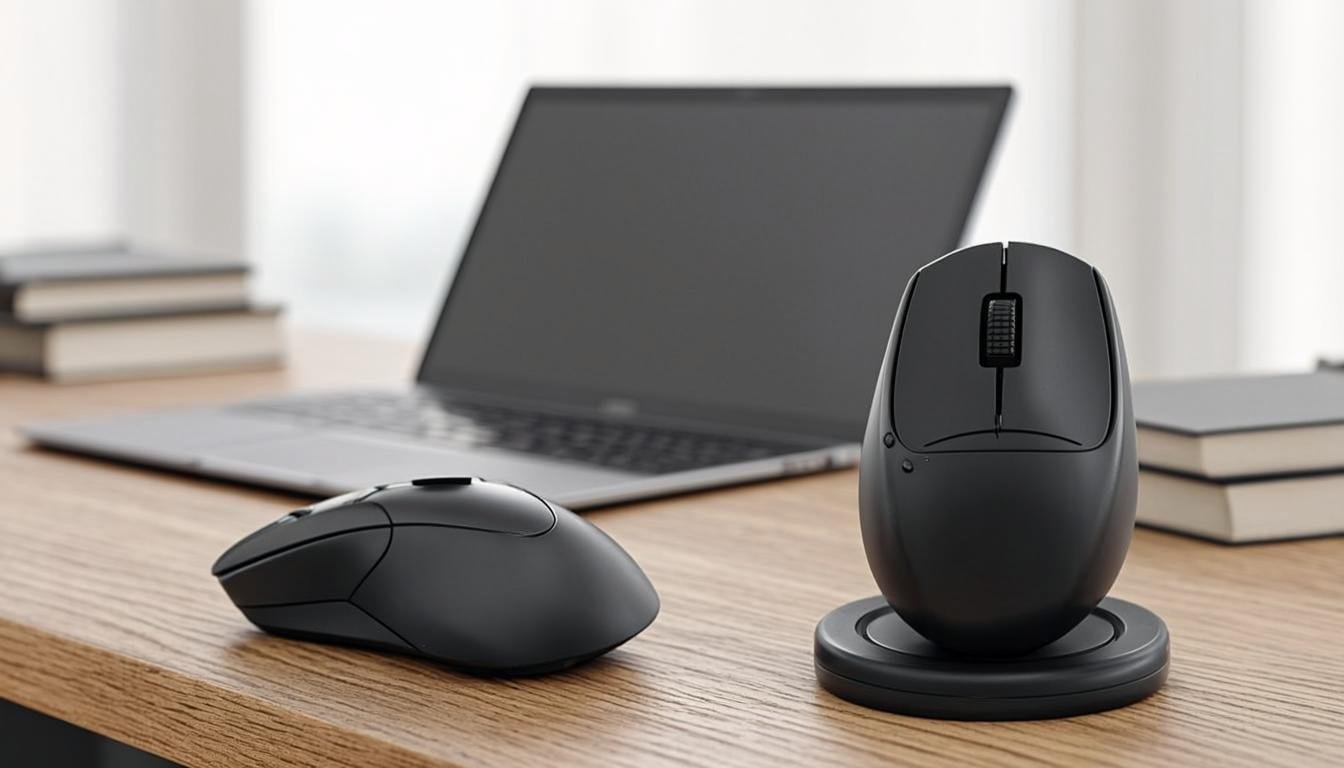

I spent three years using the cheap mouse that came with my Dell desktop. Then my wrist started hurting. Not a sharp pain, just a dull ache that built up over months until I could not ignore it anymore.
Turns out, the standard flat mouse forces your wrist into an unnatural position. Hold that angle for 8 hours a day while clicking through keyword research tools, WordPress dashboards, and analytics platforms, and your body will eventually complain.
Switching to a proper ergonomic mouse fixed the problem within two weeks. That experience is what drove me to research and test every mouse I could find that might work well for SEO work and blogging.
This guide covers the best mouse for SEO experts and bloggers. I have organized it by category so you can find exactly what fits your workflow, hand size, and budget.
BloggingJobsHub.com is created by an individual to help you find AI, WordPress, Article Writing and Blogging Jobs, and teach you skills to work long-term. The right gear supports that work. So do the right skills.
Why your mouse matters more than you think
Bloggers and SEO professionals interact with their mouse constantly. You click through browser tabs, highlight text, drag elements in WordPress, navigate spreadsheets in Google Sheets, and scroll through pages of keyword data.
Every one of those interactions either supports your hand or slowly damages it.
A standard mouse keeps your forearm twisted in a pronated position, palm flat on the desk. This is not how your arm naturally wants to rest. An ergonomic or vertical mouse lets your forearm sit in a more natural handshake position, which reduces strain on the wrist and forearm muscles.
The difference is not imaginary. Physical therapists and ergonomists have been recommending vertical and ergonomic mice for years to prevent repetitive strain injuries.
RTINGS.com does thorough mouse testing including grip comfort, click force, and tracking accuracy. Their reviews are worth checking for any mouse you are considering.
Best ergonomic mice for SEO work and blogging
These are mice designed from the ground up to reduce hand and wrist strain during long computer sessions.
Logitech MX Master 3S
The Logitech MX Master 3S is the mouse I use every single day. It costs about $99 and has been my primary pointing device for over two years now.
What makes it special is the combination of ergonomics and productivity features. The thumb rest on the left side supports your hand naturally. The shape fills your palm without forcing your wrist into awkward angles.
The MagSpeed scroll wheel is the standout feature. Spin it fast and it flies through pages with zero resistance. Perfect for scrolling through long keyword research results or long-form articles. Click it once and it switches to a precise ratcheted mode for line-by-line scrolling.
The side thumb wheel defaults to horizontal scrolling, which is incredibly useful for wide spreadsheets in Google Sheets or Excel.
Battery life is around 70 days on a full charge. It connects via Bluetooth or the included USB receiver. The USB-C charging port means you can use your laptop charger in a pinch.
The MX Master 3S has quieter clicks compared to the original MX Master 3, which matters if you work in a shared space or record audio near your desk.
At 5.0 ounces, it is on the heavier side. Some people love the weight. Others find it tiring. I personally like the heft because it makes the mouse feel stable and precise.
Who should buy it: Any blogger or SEO professional who wants the best all-around mouse. The productivity features alone make it worth the price.
Logitech MX Master 2S
The older MX Master 2S is still available at around $70 to $80. It lacks the MagSpeed scroll wheel and the quieter clicks of the 3S, but the shape and ergonomics are nearly identical.
If you do not care about the infinite scroll wheel and want to save $20, the 2S is a perfectly good alternative.
Microsoft Sculpt Ergonomic Mouse
The Microsoft Sculpt Ergonomic Mouse sits at about $40 and uses a different approach than the MX Master series. It has a pronounced tilt that angles your hand upward, reducing wrist pronation.
The shape is not as comfortable for large hands. If you have hands wider than 3.5 inches at the knuckles, this mouse will feel small. For medium and smaller hands, it fits well.
It uses 2 AA batteries that last about 6 months. The Bluetooth connection is reliable and setup is simple.
The scroll wheel is basic. No infinite scroll, no side wheel. Just a standard clickable scroll wheel that does its job without fanfare.
The biggest drawback is the sensor. It is a basic optical sensor that works fine on most surfaces but struggles on glass or high-gloss desks. Use a mouse pad and you will not have issues.
Who should buy it: Bloggers on a budget who want a tilted mouse for wrist relief without paying $100.
J-Tech Digital Scroll Endurance Wired Ergonomic Mouse
This mouse looks weird. I will not sugarcoat that. It has a distinctive joystick-like design where your hand grips a vertical tower and your thumb sits on a scroll wheel.
But it works. The J-Tech Digital Scroll Endurance Mouse costs about $35 and is designed specifically for people who experience wrist pain from traditional mice.
Your hand sits in a neutral, upright position. No wrist twisting at all. The scroll wheel is on the side, operated by your thumb. This takes some getting used to but once you learn it, scrolling is smooth and precise.
It is wired only, which is a downside for some people. But the cable is 6 feet long and flexible enough that it does not drag on the desk.
The build quality is average. Plastic housing, standard buttons, functional but not premium. At $35, that is expected.
Who should buy it: Bloggers with existing wrist pain who need immediate relief and do not want to spend $100+.
Best vertical mice for bloggers and SEO experts
Vertical mice take the ergonomic concept further by rotating the mouse 90 degrees so your hand is in a full handshake position. This is the most natural angle for your forearm and wrist.
Logitech MX Vertical
The Logitech MX Vertical is the best vertical mouse on the market. It costs about $100 and has a 57-degree tilt angle that Logitech determined through ergonomic research to be the optimal balance between comfort and precision.
The shape feels natural from the first time you pick it up. Your hand rests on a curved surface that follows the natural contour of a handshake. The thumb rest has a rubber texture that prevents slipping.
Cursor speed defaults to 4000 DPI, which is fast for a vertical mouse. Logitech includes software that lets you adjust the DPI in increments, so you can find the speed that feels right for your workflow.
The MX Vertical connects via Bluetooth or USB receiver and has a rechargeable battery that lasts about 4 months on a full charge. USB-C charging is a nice touch.
The biggest adjustment period is learning to click with your hand in a vertical position. Most people adapt within 3 to 5 days. After a week, going back to a standard mouse feels wrong.
Precision work like highlighting text or clicking small buttons in WordPress takes a little practice. The vertical grip changes how your fingers move. But after the adjustment period, accuracy is just as good as a standard mouse.
Who should buy it: SEO professionals who spend 8+ hours a day clicking through data and want to prevent or reduce wrist pain.
Anker 2.4G Wireless Vertical Ergonomic Mouse
The Anker Vertical Mouse is a budget-friendly alternative at about $25. It has a similar shape to the MX Vertical but with a simpler build.
The 60-degree tilt angle is slightly more aggressive than the MX Vertical. This puts less pressure on your wrist but requires more adjustment time for precise movements.
The optical sensor works on most surfaces. Not as smooth as the MX Vertical sensor but perfectly adequate for blogging and SEO work.
It uses a single AA battery that lasts about 6 months. The 2.4GHz wireless connection via USB dongle is reliable with no noticeable lag.
Build quality is plastic and light. It weighs about 3.5 ounces, which is lighter than the MX Vertical. Some people prefer this. Others find it feels cheap.
Who should buy it: Bloggers who want to try a vertical mouse without spending $100. The Anker is cheap enough that it is a low-risk experiment.
Evoluent VM4R Wireless Vertical Mouse
The Evoluent VM4R is the original vertical mouse. It costs about $120 and has been around in various iterations since the early 2000s.
What sets Evoluent apart is the 90-degree vertical angle. This is the most extreme tilt available and puts your wrist in a completely neutral position.
The shape is adjustable in some ways. The thumb rest can be moved, and there are grooves for different finger lengths. Evoluent includes a small guide to help you set it up for your hand size.
Six programmable buttons give you options for shortcuts. You can assign common SEO tasks like copying, pasting, or switching browser tabs to mouse buttons.
The sensor is optical and tracks well on most surfaces. Battery life is about 3 months on a charge.
The high price and extreme angle make this a niche pick. Some people love it. Others find the 90-degree angle too aggressive for precise cursor work.
Who should buy it: Bloggers with severe wrist issues who have tried less extreme ergonomic options and need maximum wrist relief.
Best trackball mice for content creators
Trackball mice eliminate wrist movement entirely because you control the cursor with your thumb or fingers while your hand stays stationary on the desk. This is a game changer for people with wrist or forearm pain.
Logitech MX Ergo
The Logitech MX Ergo is the best trackball mouse for most people. It costs about $100 and uses a thumb-controlled trackball.
The design is split. The bottom half sits flat on your desk while the top half is angled at your choice of 0 or 20 degrees. A small hinge lets you tilt the mouse forward, which adjusts the wrist angle without requiring a completely vertical grip.
The trackball itself is large and smooth. It has enough resistance to feel precise but not so much that your thumb gets tired. A button below the trackball lets you switch between precision mode and fast cursor mode.
Customizable buttons let you assign shortcuts. I have one button set to go back in the browser and another set to open a new tab. Saves a surprising amount of time when you are doing keyword research.
Battery life is around 4 months. USB-C charging is included. Bluetooth and USB receiver connections are both supported.
The main downside is the learning curve. Controlling a cursor with your thumb instead of your whole hand takes 1 to 2 weeks to feel natural. Some people never adapt and go back to regular mice. Most people who stick with it for two weeks never go back.
Who should buy it: SEO experts who want to eliminate wrist movement entirely and are willing to invest a couple weeks in the learning curve.
Kensington SlimBlade Pro Wireless Trackball
The Kensington SlimBlade Pro costs about $90 and uses a finger-operated trackball instead of a thumb trackball.
The large ball sits in the center of the device and you roll it with your index and middle fingers. This works well for people who find thumb trackballs uncomfortable or who have thumb issues.
The tracking is smooth and the sensor handles high-DPI settings well. Cursor precision is excellent once you get used to the finger-controlled movement.
The SlimBlade Pro connects via Bluetooth or 2.4GHz wireless. Battery life is about 4 months.
It doubles as a media controller. Rotate the ball counterclockwise to scroll up, clockwise to scroll down. Click the ball to select. This takes some getting used to but is handy for scrolling through long documents.
Build quality is solid. The base has a weighted feel that keeps it stable on the desk during use.
Who should buy it: Bloggers who prefer finger-controlled trackballs over thumb trackballs or who find thumb-operated devices uncomfortable.
Kensington Orbit Trackball with Scroll Ring
The Kensington Orbit is the budget trackball option at about $30. It is a wired USB trackball with a scroll ring around the ball.
The ball is smaller than the SlimBlade Pro and uses the same finger-control method. The scroll ring around the ball lets you scroll through pages by rotating the ring with your thumb. This is intuitive and works well for reading long articles and research pages.
Build quality is basic plastic. It is lightweight and sometimes shifts on the desk during vigorous use. A non-slip pad underneath solves this.
The sensor is optical and tracks fine for everyday use. No software customization for the buttons. What you get is what you get.
Who should buy it: Bloggers curious about trackballs who want a cheap entry point before committing to a premium model.
Best budget mice for bloggers
You do not need to spend $100 for a good mouse. These options cost under $50 and work well for daily blogging and SEO work.
Logitech M510 Wireless Mouse
The Logitech M510 has been around forever and costs about $25. It is a standard two-button mouse with a scroll wheel and two thumb buttons.
Nothing fancy. No ergonomic curves, no vertical tilt, no premium materials. Just a basic mouse that works reliably.
The scroll wheel has a ratcheted feel with a middle click button. The two thumb buttons default to forward and back in the browser. Battery life is about 2 years on two AA batteries.
I used an M510 for two years before upgrading. It never failed, never lost connection, and never frustrated me. It just worked.
Who should buy it: Bloggers who want a reliable, cheap mouse and do not care about ergonomics or extra features.
Amazon Basics Wireless Computer Mouse
At about $12, this is the cheapest mouse on this list that I can actually recommend. It is a basic three-button wireless mouse with a USB nano receiver.
The shape is ambidextrous. It works for left-handed and right-handed users. The scroll wheel is smooth. Battery life is about 6 months on a single AA.
The sensor works fine on mouse pads and most desk surfaces. It struggles on glass or very shiny surfaces, but that is true of most cheap optical mice.
Build quality is what you expect for $12. Lightweight plastic, no premium feel, but functional. I have one in my travel bag as a backup.
Who should buy it: Bloggers on the tightest budget or those who need a backup mouse.
Microsoft Bluetooth Mobile Mouse 3600
The Microsoft 3600 costs about $20 and connects via Bluetooth. No USB receiver needed, which saves a port on your laptop.
The design is slim and portable. It fits easily in a laptop bag or even a jacket pocket. Good for bloggers who work from coffee shops or co-working spaces.
Battery life is about 12 months on two AA batteries. The BlueTrack sensor works on more surfaces than standard optical sensors, including carpet and rough wood.
The scroll wheel is smooth but has no ratcheting mechanism. Some people like this. Others find it imprecise.
Who should buy it: Bloggers who travel often and want a compact Bluetooth mouse that does not require a USB dongle.
VicTsing Wireless Mouse with Nano Receiver
The VicTsing wireless mouse at about $15 is one of the best-selling budget mice on Amazon. It has a comfortable ergonomic shape, six buttons, and a scroll wheel with adjustable DPI.
The ergonomic design is better than most mice at this price. It has a slight contour that fits the natural curve of your hand. Not a vertical mouse but noticeably more comfortable than a flat mouse.
DPI is adjustable between 800, 1200, and 1600 via a button on top. Higher DPI means faster cursor movement. For most blogging work, 1200 DPI is the sweet spot.
The 2.4GHz wireless connection is reliable with no noticeable lag. Battery life is about 15 months on a single AA.
Build quality is budget but acceptable. The plastic housing feels thin but it has held up well in my testing.
Who should buy it: Bloggers who want ergonomic features on a tight budget.
Best mice for Mac users who blog
If you use a Mac for your blogging and SEO work, some mice work better with macOS than others.
Apple Magic Mouse
The Apple Magic Mouse costs $79. It is the mouse Apple designed for Mac users and it shows in the seamless integration.
The top surface is one large touch area. Swipe to scroll. Double-tap to zoom. Pinch or spread for other gestures. The touch surface replaces traditional scroll wheels and buttons.
The rechargeable battery lasts about a month. It charges via a Lightning port on the bottom, which is an incredibly annoying design choice because you cannot use the mouse while it charges.
The Magic Mouse is very low-profile. If you have large hands or prefer a mouse that fills your palm, this will not work for you. It works best with a fingertip grip.
Who should buy it: Mac users who want native gesture support and a minimalist design. Not recommended for long work sessions due to the flat shape.
Logitech MX Anywhere 3S
The Logitech MX Anywhere 3S at about $79 is a better choice for most Mac users who blog. It works with both Mac and Windows, has a comfortable shape for medium to small hands, and pairs with up to 3 devices via Bluetooth.
The MagSpeed scroll wheel is the same as the MX Master 3S. Smooth infinite scrolling or precise ratcheted mode. The tracking sensor works on virtually any surface, including glass, which is a feature I use more than expected.
It weighs just 3.4 ounces and fits easily in a laptop bag. Battery life is about 70 days.
The compact size means it is not ideal for large hands. If your hand is wider than 4 inches at the knuckles, consider the MX Master 3S instead.
Who should buy it: Mac users who want a portable mouse that pairs with multiple devices and works on any surface.
Best gaming mice for blogging
Gaming mice are not just for gamers. They offer high-DPI sensors, programmable buttons, and precise tracking that work great for productivity.
Logitech G502 Hero
The Logitech G502 Hero costs about $50 and is one of the most popular gaming mice ever made. Bloggers love it too.
The 11 programmable buttons let you assign shortcuts for common tasks. I have buttons set for copy, paste, close tab, and switch between browser tabs. Saves time when you are doing repetitive SEO research.
The sensor tracks up to 25,600 DPI. Way more than you need for blogging, but the precision is real. Even at moderate DPI settings, cursor movement is smooth and accurate.
The scroll wheel switches between ratcheted and free-spin modes. Weighs 4.4 ounces but comes with removable weights so you can customize the feel.
The design has thumb grooves and textured side grips. Some bloggers love this. Others find the gaming aesthetic too aggressive for professional settings.
Who should buy it: Bloggers who want lots of programmable buttons and precise tracking at a reasonable price. Do not let the gaming label scare you off.
Razer DeathAdder V3
The Razer DeathAdder V3 is about $50 and is one of the most comfortable ergonomic gaming mice available.
The shape naturally supports your hand with a slight tilt that reduces wrist strain. The 30,000 DPI optical sensor is overkill for blogging but means the cursor tracks flawlessly at any speed.
The click switches are Razer's Gen-3 optical switches, which are light and responsive. They also last longer than mechanical switches, rated at 90 million clicks.
Weighs just 2.3 ounces, making it one of the lightest mice on this list. Some people prefer a lighter mouse for reduced fatigue. Others find it too light and lacking stability.
Battery life on the wireless version is about 90 hours. The wired version is cheaper at around $40.
Who should buy it: Bloggers who want a lightweight, ergonomic mouse with a comfortable shape and fast, responsive clicks.
How to choose the right mouse for your needs
With all these options, how do you actually pick?
Consider your hand size
Hand size is the most important factor in mouse comfort. Measure your hand from the base of your palm to the tip of your middle finger.
Under 6.5 inches: Compact mice like the MX Anywhere 3S or Microsoft 3600.
6.5 to 7.5 inches: Medium mice like the MX Master 3S, Logitech G502, or MX Vertical.
Over 7.5 inches: Larger mice or adjustable options like the Evoluent VM4R.
Consider your grip style
Palm grip: Your whole hand rests on the mouse. Best for larger mice like the MX Master 3S or MX Ergo.
Claw grip: Your palm rests on the back of the mouse but your fingers arch up to the buttons. Works with medium mice like the G502.
Fingertip grip: Only your fingertips touch the mouse. Best for smaller, lighter mice like the MX Anywhere 3S.
Consider your pain level
No pain: Any mouse on this list will work. Pick based on features and budget.
Mild discomfort: Consider an ergonomic mouse like the MX Master 3S or Microsoft Sculpt.
Moderate pain: Try a vertical mouse like the MX Vertical or Anker Vertical.
Severe pain: Consider a trackball like the MX Ergo or consult a physical therapist.
Consider your workflow
If you spend most of your time writing and rarely use a mouse, a basic wireless mouse is fine. If you spend hours in SEO tools clicking through data, invest in a mouse with programmable buttons and a good scroll wheel.
Mouse accessories that improve your experience
The right accessories make any mouse more comfortable and precise.
Mouse pads
A good mouse pad makes a real difference in tracking quality and wrist comfort.
The HyperX Fury S Speed Edition at about $15 is a large cloth mouse pad that gives you plenty of room. The cloth surface provides consistent tracking and the stitched edges prevent fraying.
The Razer Gigantus V2 at about $20 is even larger and has a similar cloth surface. Good if you use a low-DPI setting and need the extra space for wide cursor movements.
For ergonomic wrist support, the Gimhae Memory Foam Mouse Pad with Wrist Rest at about $14 adds a cushion that keeps your wrist at a neutral angle.
Wrist rests
If your mouse does not have a built-in wrist rest, an external one can help.
The 3M Soft Touch Wrist Rest at about $18 has a gel cushion that supports your wrist without restricting movement. The non-skid base keeps it in place on your desk.
The Kensington Duo Gel Mouse Wrist Rest at about $15 is another solid option. The gel center provides support while the flat edges keep it stable.
Mouse bungees
A mouse bungee holds your wired mouse cable up in the air, preventing it from dragging on the desk. This matters if you use a wired mouse like the J-Tech Digital Vertical Mouse.
The Razer Mouse Bungee V3 at $30 looks sleek and holds cables securely. The base is weighted so it does not move during use.
Budget mouse bungees on Amazon for $10 to $15 work fine. They are basically weighted stands with a flexible arm that holds the cable.
Using mouse shortcuts for SEO productivity
The right mouse can speed up your SEO workflow significantly if you program it correctly.
Button assignments I use
Back button: Switch to previous browser tab.
Forward button: Switch to next browser tab.
Middle click (scroll wheel press): Open link in new tab.
Side button (on MX Master): Show desktop (to quickly reference something on my desktop).
These four shortcuts save me dozens of clicks per hour during keyword research and competitive analysis.
Logitech Flow for multi-device users
If you work across a laptop and desktop, Logitech Flow lets you move your cursor between both devices seamlessly. The MX Master 3S and MX Anywhere 3S both support this.
You can even copy text on one device and paste it on the other. This is incredibly useful when you are researching on a desktop and writing on a laptop.
Switching from a standard mouse: what to expect
If you have been using a regular flat mouse for years, switching to an ergonomic or vertical mouse takes adjustment.
The first 3 days
Your hand will feel awkward. Cursor movements will be imprecise. You might accidentally click wrong buttons. This is normal.
Days 4 to 7
Your muscle memory starts adapting. Cursor precision improves. You begin to appreciate the reduced wrist strain.
Week 2 and beyond
The new mouse feels natural. Going back to a standard mouse feels wrong. Your wrist pain (if you had any) starts to improve or disappear.
When to give up
If after two weeks you still find the new mouse uncomfortable or imprecise, it might not be the right fit for your hand size or grip style. Try a different type. Switch from a vertical mouse to a trackball, or from a large mouse to a smaller one.
Physical therapy exercises for mouse-related strain
No mouse, no matter how ergonomic, eliminates the need to take care of your hands and wrists.
Wrist stretches
Hold your arm out straight with your palm facing up. Use your other hand to gently pull your fingers back toward your forearm. Hold for 20 seconds. Repeat 3 times.
Rotate your wrist in slow circles, 10 times in each direction.
Forearm stretches
Extend your arm with your palm facing down. Use your other hand to press your hand toward your body. Hold for 20 seconds. Repeat 3 times.
Grip strengthening
Squeeze a stress ball for 5 seconds, then release. Repeat 10 times. Do this 2 to 3 times per day.
Breaks
Take a 30-second break every 30 minutes. Stand up, stretch your hands, look away from your screen. This matters more than any ergonomic mouse.
Set a timer if you need to. I use a simple kitchen timer set to 30 minutes. When it goes off, I stand up, stretch, and sit back down.
FAQ: best mouse for SEO experts and bloggers
What is the best mouse for SEO work?
The Logitech MX Master 3S at $99 is the best overall mouse for SEO work. Its combination of ergonomic shape, MagSpeed scroll wheel for fast navigation through keyword data, side thumb wheel for horizontal scrolling in spreadsheets, and programmable buttons for shortcuts makes it the most productive mouse for daily SEO tasks. It works on Mac and Windows, connects via Bluetooth, and has a battery that lasts about 70 days.
Do vertical mice actually reduce wrist pain?
Yes, based on both ergonomic research and personal experience. Vertical mice put your forearm in a handshake position, which is its natural resting angle. This reduces the twisting force on your wrist that standard flat mice create. Studies published in ergonomics journals have shown that vertical mice reduce forearm muscle activity and wrist extension compared to traditional mice. The adjustment period takes 3 to 7 days, but most people report reduced discomfort within the first two weeks.
Are trackball mice good for blogging?
Trackball mice are excellent for blogging because your hand stays completely still while your thumb or fingers control the cursor. This eliminates the repetitive wrist and arm movements that standard mice require. The Logitech MX Ergo at $100 is the best trackball for bloggers. The learning curve takes 1 to 2 weeks, but once you adapt, it is more comfortable than a standard mouse for extended writing and research sessions.
How much should I spend on a mouse for blogging?
You can get a functional mouse for $15 to $25. You can get a great mouse for $50 to $100. Anything above $100 is premium territory with diminishing returns for blogging work. The sweet spot is $50 to $100, where you get ergonomic design, programmable buttons, wireless connectivity, and good build quality. The Logitech MX Master 3S at $99 is the best value at that price point.
Can a bad mouse cause carpal tunnel syndrome?
Prolonged use of a poorly designed mouse can contribute to repetitive strain injuries including carpal tunnel syndrome. The unnatural wrist angle of standard mice puts pressure on the median nerve that runs through your wrist. Switching to an ergonomic or vertical mouse reduces this pressure. However, carpal tunnel syndrome has multiple causes and if you are experiencing persistent numbness, tingling, or weakness in your hands, see a doctor rather than just changing your mouse.
How many buttons should a blogging mouse have?
For most bloggers, 5 to 7 buttons is the right amount. Left click, right click, scroll wheel, and 2 to 4 thumb buttons. The thumb buttons are the most useful for productivity. I assign browser navigation (back, forward), new tab, and desktop shortcut to mine. More buttons than that are useful for gamers but unnecessary for blogging. The Logitech MX Master 3S has 7 buttons total, which is enough for any blogging workflow.
Is a wireless or wired mouse better for blogging?
Wireless is better for most bloggers because it reduces cable clutter on your desk and lets you position the mouse wherever is comfortable without being tethered. Modern wireless mice from Logitech, Microsoft, and others have no noticeable latency compared to wired mice. The only reason to choose wired is if you want zero battery concerns or you are on a very tight budget. Battery life on modern wireless mice is 2 to 6 months, so charging is rarely an issue.
What mouse works best with a Mac for blogging?
The Logitech MX Master 3S is the best mouse for Mac bloggers despite not being made by Apple. It pairs seamlessly via Bluetooth, supports Logitech Flow for switching between Mac and other devices, and has better ergonomics than the Apple Magic Mouse. The Apple Magic Mouse at $79 is an option if you prioritize gesture support and minimalist design, but its flat shape is uncomfortable for long sessions. The Logitech MX Anywhere 3S at $79 is a good compact alternative for Mac users who prefer a smaller mouse.
How do I prevent wrist pain from mouse use?
Switch to an ergonomic or vertical mouse. Use a mouse pad with wrist support. Take a 30-second break every 30 minutes. Do wrist and forearm stretches daily. Position your mouse so your wrist stays straight, not bent up, down, or to the side. Your elbow should be at roughly 90 degrees with your forearm parallel to the floor. If pain persists after making these changes, see a physical therapist.
What is the best budget mouse under $30 for bloggers?
The VicTsing Wireless Mouse at $15 is the best budget option because it has an ergonomic shape, adjustable DPI, and six programmable buttons. The Logitech M510 at $25 is slightly more expensive but offers better reliability and battery life. The Amazon Basics Wireless Mouse at $12 is the absolute cheapest option that works. Any of these will handle basic blogging tasks. The VicTsing offers the most features per dollar.
Can I use a gaming mouse for SEO work?
Absolutely. Gaming mice have high-precision sensors, programmable buttons, and comfortable designs that work great for productivity. The Logitech G502 Hero at $50 is popular among SEO professionals for its 11 programmable buttons, which you can assign to common browser shortcuts. Gaming mice tend to have more aggressive aesthetics and sometimes more buttons than you need, but the performance is excellent.
Where can I find blogging and SEO jobs to invest in better gear?
BloggingJobsHub.com is created by an individual to help you find AI, WordPress, Article Writing and Blogging Jobs, and teach you skills to work long-term. Check the blogging, content-writing, freelancing, and remote-jobs sections for current opportunities. Building skills through the skills-learning resources on BloggingJobsHub.com helps you earn more and justify investments in better equipment like an ergonomic mouse setup. Google's helpful content guidelines reward quality work, and the right tools help you produce that quality consistently.

Other Articles

Best internet setup for remote workers
Best laptops for blogging and SEO work (2025 guide)