

I spent three years blogging on a 15-inch laptop screen before upgrading. Those three years included squinting at WordPress sidebars, losing track of browser tabs, and dealing with neck pain that no amount of stretching fixed. If you write content, run SEO audits, or manage websites for a living, your monitor setup matters more than you think.
This guide walks you through the real differences between monitor sizes for blogging and SEO work. I tested 24, 27, and 32-inch displays over the past several months while doing actual keyword research, writing articles in WordPress, and running site audits. Here is what actually matters and what does not.
BloggingJobsHub.com is created by an individual to help you find AI, WordPress, Article Writing and Blogging Jobs, and teach you skills to work long-term. Whether you are just starting your blogging career or you have been at it for years, having the right workspace setup makes your workflow smoother.
Why monitor size matters for bloggers and SEO professionals
Think about how you actually work during a typical day. You probably have a text editor open on one side, a browser with reference pages on another, and maybe Google Search Console or an SEO tool running somewhere in the background. That is a lot of screen real estate to juggle on a small display.
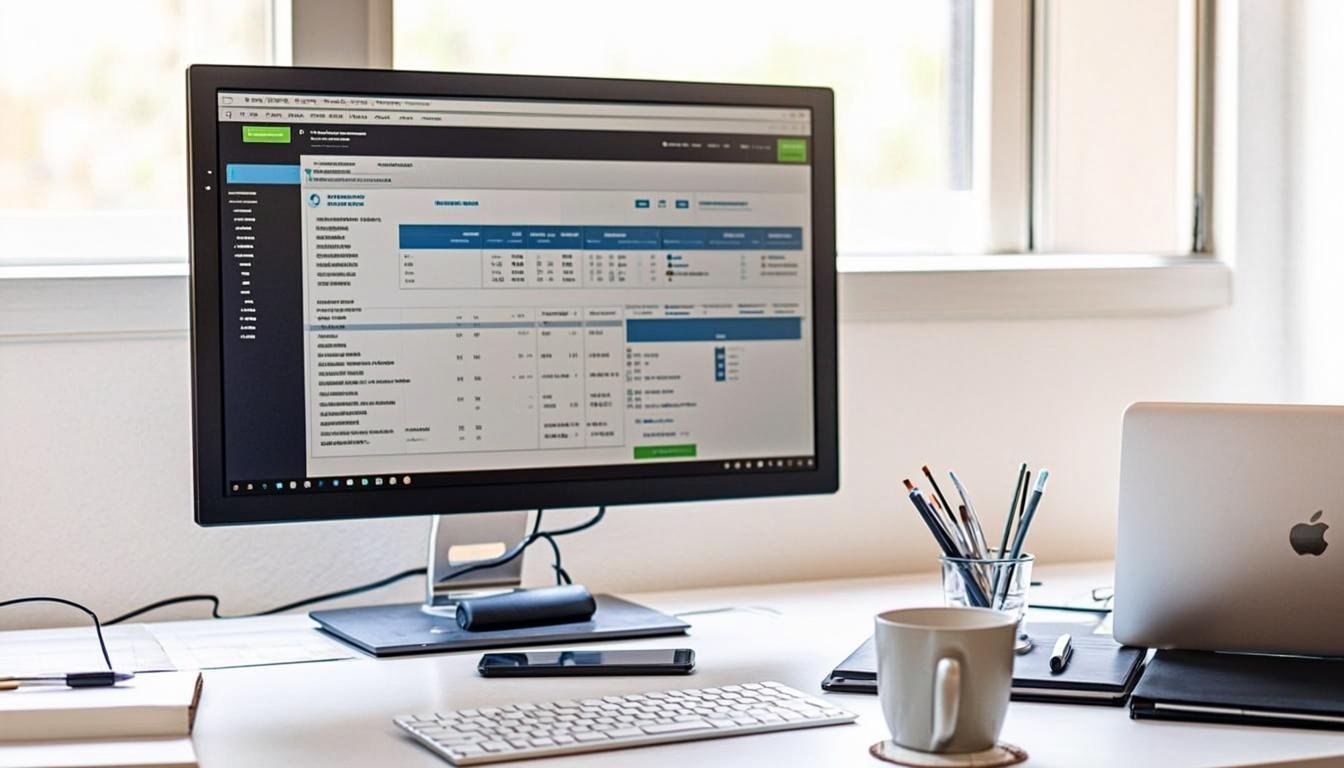
When I switched from my laptop screen to a proper monitor, my productivity jumped noticeably. Not because the monitor itself made me faster, but because I stopped constantly alt-tabbing between windows. I could see my WordPress editor and my keyword research side by side. That alone saved me probably an hour per day.
For SEO work specifically, screen space is even more of a factor. You are looking at spreadsheets of keywords, browser extensions like Ahrefs or Moz, analytics dashboards, and your content editor all at once. Trying to do that on a 15-inch laptop feels like trying to read a newspaper through a keyhole.
Your eyes and posture matter too. A properly positioned monitor at the right size reduces eye strain and neck fatigue. If you are sitting at a desk for 6 to 10 hours a day writing content, small improvements in comfort compound fast.
24 inch vs 27 inch vs 32 inch monitors compared
I tested each size for at least two weeks while doing real blogging and SEO tasks. Here is how they compare in practice.
24 inch monitors
A 24-inch monitor is the smallest I would recommend for serious blogging work. Anything smaller and you are better off just using a laptop.
The big advantage of 24 inches is that it fits on almost any desk. If you work in a small apartment or a shared space, a 24-inch display takes up minimal room. At 1080p resolution, text looks sharp and crisp because the pixel density is high for that screen size.
I found 24 inches workable for writing but tight for SEO work. You can fit a WordPress editor and a browser side by side, but everything feels cramped. Your browser tabs are small. Your SEO tool dashboards do not have much room to breathe.
A 24-inch monitor at 1080p costs between $100 and $180. The Dell S2421HN runs about $150 and delivers solid color accuracy for the price. The LG 24MP400 is another reliable option around $130.
If your budget is tight and your desk is small, 24 inches gets the job done. But if you can stretch to 27, you probably should.
27 inch monitors
27 inches is the sweet spot for most bloggers and SEO professionals I have talked to. It gives you enough room to work comfortably without dominating your entire desk.
At 27 inches with 1440p resolution, you get a pixel density that keeps text sharp while giving you roughly 77% more screen area than a 24-inch 1080p display. That extra space lets you run WordPress, a browser, and an SEO tool simultaneously without everything feeling squished.
I did most of my testing at 27 inches and it felt natural almost immediately. Writing articles was comfortable. Research was easy. Running site audits through Screaming Frog or Google Search Console felt manageable because I could keep multiple panels visible.
The Dell S2721QS is one of the best values at 27-inch 4K, typically priced around $320 to $360. If you prefer 1440p, the Gigabyte M27Q sells for about $250 to $300 and has excellent reviews from RTINGS.com for color accuracy and text clarity.
One thing to watch out for at 27 inches: if you go with 1080p instead of 1440p or 4K, text can look slightly fuzzy because the pixel density drops. I would not recommend a 27-inch 1080p monitor for writing work. Spend the extra money for the resolution upgrade.
32 inch monitors
A 32-inch monitor is a different experience entirely. It is closer to having two 24-inch monitors side by side, which sounds great in theory but comes with tradeoffs.
The main benefit is workspace. I could fit a full WordPress editor, a browser with multiple tabs, a Google Sheets keyword tracker, and an SEO dashboard all visible at once. No alt-tabbing required. For someone who does heavy technical SEO work or manages multiple websites, that is hard to beat.
The downsides are real though. A 32-inch monitor demands desk space. You need to sit farther back from it, which means your desk needs to be deep enough to accommodate that distance. If your desk is less than 30 inches deep, a 32-inch screen will feel overwhelming.
At 32 inches, you really want 4K resolution to keep text sharp. A 32-inch 1440p display has lower pixel density than a 27-inch 1440p display, which means slightly softer text. For writers, that matters. You are staring at words all day, and fuzzy text causes eye fatigue.
The LG 32UN880-B is a solid 32-inch 4K option around $450. The Dell U3223QE costs more at about $550 to $600 but offers better color accuracy and USB-C connectivity.
I think 32 inches makes the most sense if you do a lot of data-heavy SEO work alongside your writing. If you mostly write articles and do light keyword research, 27 inches is probably the better call.
1080p vs 1440p vs 4K resolution options
Resolution matters just as much as physical screen size, maybe more. Here is how the three main options affect blogging and SEO work.
1080p (Full HD)
1080p means 1920 by 1080 pixels. On a 24-inch monitor, this looks great because the pixel density is around 92 pixels per inch. Text is sharp, images are clear, and everything renders cleanly.
On a 27-inch monitor, 1080p drops to about 82 pixels per inch. You can see the difference. Text looks slightly less crisp, especially at small font sizes. For writing work, this is not ideal.
I would only recommend 1080p at 24 inches. At any larger size, you are sacrificing readability.
1440p (Quad HD)
1440p means 2560 by 1440 pixels. This is the resolution I recommend for most bloggers working at 27 inches.
At 27 inches, 1440p gives you about 109 pixels per inch. That is sharp enough for comfortable reading and writing while giving you significantly more workspace than 1080p. You can fit more on screen without everything becoming tiny.
For SEO work, 1440p hits a great balance. Your spreadsheets, dashboards, and browser windows all have room to display properly. Text stays readable. And most modern computers can drive a 1440p display without breaking a sweat.
The best part about 1440p is the value. Monitors like the ASUS ProArt PA278CV offer 1440p with excellent color accuracy for around $280. That is a lot of monitor for the money.
4K (Ultra HD)
4K means 3840 by 2160 pixels. At 27 inches, this gives you roughly 163 pixels per inch, which makes text incredibly sharp. At 32 inches, you still get about 137 pixels per inch, which is excellent.
4K is undeniably the best for text clarity. If you write thousands of words per day, having razor-sharp text reduces eye strain. I noticed the difference most when reading long-form content and editing my own articles.
The catch is that 4K requires more from your computer. You need a decent GPU to drive it smoothly, and some older laptops struggle with 4K output. Scaling can also be an issue on Windows. Some applications do not scale properly at 4K, which means tiny menus or blurry text in certain programs.
If you have a computer built in the last 3 years, 4K should work fine. The Dell S2722QC at 27-inch 4K runs about $280 to $320, which is a reasonable price for the upgrade.
Best monitors by size for blogging and SEO work
Here are my specific recommendations based on actual use, not just spec sheets.
Best 24 inch monitor
Dell S2421HN ($140 to $160)
This is a straightforward 24-inch 1080p monitor with IPS panel technology for good viewing angles. Colors are accurate enough for basic photo editing if you also handle blog images. The bezels are thin, which is nice if you ever add a second monitor. It has an adjustable stand with tilt capability.
The Dell S2421HN consistently ranks well on RTINGS.com for budget monitors, and I found it perfectly adequate for writing work. The 1080p resolution at 24 inches keeps everything sharp.
LG 24MP400 ($120 to $140)
A slightly cheaper alternative. Colors are not quite as accurate as the Dell, but for pure writing and research work, it gets the job done. The stand only tilts, which is a minor annoyance.
Best 27 inch monitor
Dell S2721QS ($310 to $360)
This is my top pick for most bloggers. It is a 27-inch 4K IPS monitor with excellent text clarity and good color accuracy. The stand supports height adjustment, tilt, swivel, and pivot. Being able to rotate it 90 degrees into portrait mode is genuinely useful for reading long articles and documents.
I used this monitor for most of my testing and it impressed me every week. Text is sharp, colors look natural, and the stand is sturdy without being massive.
Gigabyte M27Q ($250 to $300)
If you prefer 1440p over 4K, this is the monitor to get. Wirecutter has recommended Gigabyte monitors in their guide to the best monitors, and the M27Q delivers great value. It has a fast refresh rate too, which is irrelevant for writing but nice if you also game on the same machine.
Best 32 inch monitor
LG 32UN880-B ($420 to $470)
A 32-inch 4K IPS monitor with an ergonomic stand that includes a clamp mount option. The USB-C connectivity is a big plus if you use a laptop. You can plug one cable in and charge your laptop while driving the display.
Dell U3223QE ($520 to $620)
If you have the budget, this is the premium option. It uses a Black IPS panel for better contrast and color accuracy. The USB-C hub built into the monitor lets you connect peripherals directly to the display. For bloggers who also do design work for their sites, the color accuracy is worth the extra cost.
Single monitor vs dual monitor setups for bloggers
This is one of the most common questions I get from other writers. Should you use one big monitor or two smaller ones?
Single monitor pros and cons
One monitor means fewer cables, less desk clutter, and a cleaner workspace. If you get a 27-inch or 32-inch display, you have enough room to window your applications side by side using your operating system's built-in features.
Windows 11 and macOS both handle window snapping well. You can drag a window to one side and it fills exactly half the screen. On macOS, Stage Manager and Magnet (a third-party app) give you even more control.
The downside of a single monitor is that you still have to manage windows. Even on a 32-inch display, you are deciding what goes where. Some people find this distracting.
Dual monitor pros and cons
Two monitors give you dedicated spaces. You might have WordPress on one screen and your research on the other. Or your SEO tool on the left and your content on the right. No window management required.
I used a dual 24-inch setup for about six months. It worked well, but I noticed a problem. My neck was constantly turning left and right throughout the day. By the end of each work session, my neck felt tight and sore.
This is a real issue that most dual monitor users experience but do not talk about. When you have two screens, you tend to turn your head frequently. Over months and years, that adds up.
The other challenge is matching. If you buy two different monitors, the colors, brightness, and heights might not line up. That inconsistency bothered me more than I expected.
My recommendation
For most bloggers and SEO workers, I recommend a single 27-inch 4K monitor. It gives you enough space to work without the neck strain of dual displays. If you find yourself really needing more room, add a second 24-inch monitor in portrait mode for reading documents.
If you go dual, buy two identical monitors. Matching displays look better and are easier to set up. The Wirecutter monitor guide covers dual monitor setups in detail if you want to dig deeper.
Monitor stands and arms
The stand your monitor comes with might be fine, but an upgrade can make a big difference in comfort.
Why monitor height matters
Most default stands are too short for writing work. You end up looking slightly downward at your screen, which forces your neck into an awkward angle. Over time, this causes pain and stiffness.
The ideal monitor position has the top of the screen at or slightly below eye level. You should look slightly downward at about 15 to 20 degrees to see the center of the screen. Achieving this often requires raising the monitor several inches above what the default stand provides.
Monitor arms
A monitor arm clamps to your desk and holds your display at whatever height and angle you want. The Ergotron LX Desk Mount LCD Arm is the gold standard, priced around $180 to $200. It holds up to 25 pounds and adjusts smoothly.
A more budget-friendly option is the Amazon Basics Single Monitor Stand at about $25 to $35. It is not as smooth or as sturdy as the Ergotron, but it gets your monitor to the right height without spending much.
I switched to a monitor arm about a year ago and I will never go back. The ability to pull the monitor closer or push it away, adjust the height in seconds, and rotate it to portrait mode without fumbling with a stand is genuinely useful on a daily basis.
Monitor risers and stands
If you do not want an arm, a simple monitor riser can help. The Amazon Basics Monitor Stand raises your display about 4 inches and includes storage space underneath. It costs around $25.
Wood monitor risers on Amazon run between $20 and $40 depending on the size and finish. They look nicer than plastic options but do not offer height adjustment. You get what you get.
How your monitor connects to your computer
This gets overlooked a lot but matters when you are buying. Here are the connection types you will encounter.
HDMI
Standard on almost everything. HDMI 2.0 supports 4K at 60Hz, which is what you need for a 4K monitor. If your monitor is 1080p or 1440p, any HDMI version works fine.
DisplayPort
Common on desktop PCs and some laptops. DisplayPort 1.4 supports 4K at high refresh rates. If you are connecting a desktop to a 4K monitor, DisplayPort is usually the cleanest option.
USB-C
This is the best connector if you have a modern laptop. A single USB-C cable can carry video, data, and power. You plug one cable into your laptop and it charges while driving your monitor. The Dell S2722QC and LG 32UN880-B both support USB-C with power delivery.
If you use a MacBook or a newer Dell, HP, or Lenovo laptop, look for a USB-C monitor. It simplifies your desk setup enormously.
Make sure you check what ports your computer actually has before buying. There is nothing more frustrating than getting a new monitor home and realizing you need an adapter.
Tips for reducing eye strain during long writing sessions
A good monitor helps, but how you use it matters just as much.
Adjust your brightness
Your monitor should not be the brightest light source in the room. If you work in a dim room with the monitor cranked to full brightness, you are straining your eyes without realizing it.
Match your monitor brightness to your ambient lighting. Most monitors have a brightness setting around 200 to 300 nits for comfortable indoor use. During the day with sunlight in the room, you might go higher. At night, lower it significantly.
Use blue light features thoughtfully
Most monitors and operating systems offer blue light filters. Windows has Night Light. macOS has Night Shift. These warm the color temperature of your display in the evening.
I use these features, but I do not overdo it. Heavy blue light filtering makes colors inaccurate, which matters if you are editing blog images or checking your site design. I set mine to a subtle warm shift starting about an hour before bed.
Follow the 20-20-20 rule
Every 20 minutes, look at something 20 feet away for 20 seconds. This gives your eye muscles a chance to relax. It sounds trivial but makes a real difference over an 8-hour writing day.
I set a repeating timer on my phone to remind me. After the first week, it became habit.
Font size and scaling
Do not make yourself squint. On a 4K monitor, you will want to use display scaling. Windows defaults to 150% or 200% at 4K, and macOS handles scaling automatically through its Retina display system.
In your writing app, set your editor font to a comfortable size. I write at about 16 to 18 pixels in most editors. Anything smaller causes unnecessary strain over long sessions.
Monitor accessories that actually help
Beyond the monitor itself, a few accessories improve the experience.
Anti-glare screen protector
If your monitor has a glossy screen or you work near a window, an anti-glare screen protector cuts reflections without significantly affecting image quality. Brands like MatePro sell these for $15 to $30 depending on screen size.
Monitor light bar
A monitor light bar sits on top of your display and shines light down onto your desk. The BenQ ScreenBar is the best known, priced around $110. A budget alternative like the Glocusent LED Monitor Light Bar costs about $35 to $45.
These work well because they illuminate your workspace without causing screen glare. If you write at night or in a room without good overhead lighting, a light bar is genuinely helpful.
Desk cable management
Nothing ruins a clean workspace like a rats nest of cables behind your monitor. Cable clips, sleeves, and trays cost almost nothing but make your setup look and feel better. The J Channel Cable Management kit on Amazon runs about $10 and handles most setups.
My final monitor recommendations by use case
After testing multiple sizes and resolutions for actual blogging and SEO work, here is what I would buy right now.
For writers who mostly type articles: Get a 27-inch 4K monitor. The Dell S2721QS at around $320 is my pick. Sharp text, good stand, reasonable price. This is the best all-around option for content creators.
For SEO professionals who stare at data all day: A 32-inch 4K monitor gives you the spreadsheet and dashboard space you need. The LG 32UN880-B at around $450 works well.
For bloggers on a tight budget: A 24-inch 1080p monitor like the Dell S2421HN at $150 covers the basics. Add a monitor arm for $30 and you have a solid setup for under $200.
For laptop users who want simplicity: A USB-C monitor eliminates cable clutter. The Dell S2722QC at $280 to $320 works with most modern laptops through a single cable.
Whichever you choose, do not overthink it. Any external monitor is better than working on a laptop screen all day. The best monitor is the one you can afford that fits on your desk and makes your work easier.
If you are setting up a workspace to pursue blogging or content writing jobs, check out our guides on /blogging/ and /content-writing/ for more tips on building a sustainable writing career.
Frequently asked questions
What monitor size is best for blogging and SEO work?
27 inches is the best overall size for most bloggers and SEO professionals. It provides enough screen space to run a text editor and browser side by side without requiring excessive desk space or causing neck strain like dual monitors can. Pair it with 4K resolution for the sharpest text.
Is a 32-inch monitor too big for writing work?
It depends on your desk depth and how you work. A 32-inch monitor requires you to sit about 30 inches away for comfortable viewing. If your desk is deep enough, 32 inches works great for SEO work where you need lots of visible screen space. For pure writing, 27 inches is more practical for most people.
Do I need 4K resolution for blogging work?
4K is not strictly necessary but it makes a noticeable difference in text clarity. If you write for several hours a day, the sharper text at 4K reduces eye strain. At 27 inches, 1440p is a good compromise that costs less while still looking sharp.
Is 1080p good enough for a 27-inch monitor?
I would not recommend 1080p at 27 inches. The pixel density is too low, making text look slightly fuzzy. If you are on a budget, get a 24-inch 1080p monitor instead. If you want 27 inches, spend the extra money for 1440p or 4K.
Should bloggers use one monitor or two?
Most bloggers are better off with one high-quality 27-inch or 32-inch monitor. Dual monitors cause neck strain from constant head turning and require more desk space. If you need extra screen real estate occasionally, a single 4K monitor gives you plenty of workspace.
What is the best budget monitor for content writing?
The Dell S2421HN at around $140 to $160 is the best budget option. It is a 24-inch 1080p monitor with an IPS panel for good colors and viewing angles. Add a cheap monitor riser or arm to get it to the right height and you have a solid writing setup.
Does monitor refresh rate matter for blogging and SEO work?
Not really. Refresh rate (measured in Hz) affects how smooth motion looks on screen. For typing, reading, and web browsing, 60Hz is perfectly fine. Higher refresh rates like 144Hz are for gaming. Do not spend extra on a high refresh rate monitor for writing work.
How far should I sit from my monitor?
For a 24-inch monitor, sit about 20 to 24 inches away. For 27 inches, about 24 to 30 inches. For 32 inches, about 30 to 36 inches. The top of the screen should be at or slightly below eye level, and you should look slightly downward at the center of the display.
Can I use a TV as a monitor for blogging?
You can, but I would not recommend it for writing work. TVs typically have lower pixel density, higher input lag, and worse text rendering than dedicated monitors. A 32-inch 4K TV and a 32-inch 4K monitor are not the same thing. The monitor will produce sharper text and more accurate colors for close-up desk work.
What monitor connection is best for laptops?
USB-C is the best option for modern laptops because it handles video, data, and charging through a single cable. If your laptop does not have USB-C, HDMI or DisplayPort both work fine for 1080p and 1440p. For 4K, DisplayPort 1.4 or HDMI 2.0 are both sufficient.
Is an ultrawide monitor good for SEO work?
Ultrawide monitors like 34-inch curved displays work well for some SEO professionals because you get a lot of horizontal screen space. They are expensive though, typically $400 to $800. For most bloggers, a standard 27-inch 4K monitor provides a better value. If you do heavy data analysis, an ultrawide might be worth considering.
How much should I spend on a monitor for blogging?
Expect to spend $150 to $200 for a solid budget setup with a 24-inch monitor. $300 to $400 gets you an excellent 27-inch 4K display. $450 to $600 covers premium 32-inch options. Anything beyond that is overkill for writing and SEO work.

Other Articles