
I used to work on a desk buried under cables, random notebooks, and three half-empty coffee mugs. My content creation output was garbage. Not because I lacked skill, but because my workspace was a mess that killed my focus.
Then I stripped everything down to the essentials. No extra monitors I barely used. No gadgets collecting dust. Just the gear I actually need to write blog posts, edit photos, and record videos.
That change made a bigger difference than any new tool I ever bought.
If you create content for a living, your desk setup matters more than you think. Let me walk you through what a minimal desk setup for content creators actually looks like, what gear you need, and what you can skip entirely.
BloggingJobsHub.com is created by an individual to help you find AI, WordPress, Article Writing and Blogging Jobs, and teach you skills to work long-term. A clean workspace is part of that long-term game.
Why a minimal desk setup works better for content creation
Clutter competes for your attention. That is not my opinion, it is what neuroscience research has shown for years. Every extra item on your desk is another thing your brain has to process, even if you do not realize it.
When you write a blog post or edit a YouTube video, you need sustained focus. A minimalist workspace removes visual noise so you can actually concentrate on the task in front of you.
I am not talking about some aesthetic Instagram setup with zero personality. A functional minimal setup means keeping only what you use daily within arm's reach and storing everything else.
The benefits hit you fast. You spend less time looking for things. You transition between tasks quicker. Your mind feels lighter when you sit down to work.
There is real money behind this too. Google's helpful content guidelines reward content that demonstrates actual experience and expertise. When your workspace helps you produce better work faster, you publish more, rank higher, and earn more.
The desk itself
Your desk is the foundation. Get this wrong and nothing else matters.
Stand up or sit down?
I switched to a standing desk three years ago and never looked back. But I am not going to tell you that standing is some magic cure for everything. It is not.
What a height-adjustable desk does is give you options. You sit when you are tired. You stand when you have been sitting too long. That flexibility alone is worth the investment.
I use the UPLIFT V2 Commercial Standing Desk. It costs around $780, and I got the 60-inch bamboo top. Solid build, no wobble at max height, and the motor is quiet.
If that price makes you wince, the FlexiSpot E7 Pro is a solid pick at around $500. Wirecutter recommends the UPLIFT V2 as their top pick, and RTINGS.com covers standing desks with detailed wobble and noise tests.
For a budget option, check the SHW 55-inch Electric Standing Desk at roughly $280 on Amazon. It is not as premium, but it works fine for content creation.
Desk size
Content creators do not need massive desks. I went from a 72-inch desk to a 48-inch desk and my work did not suffer at all.
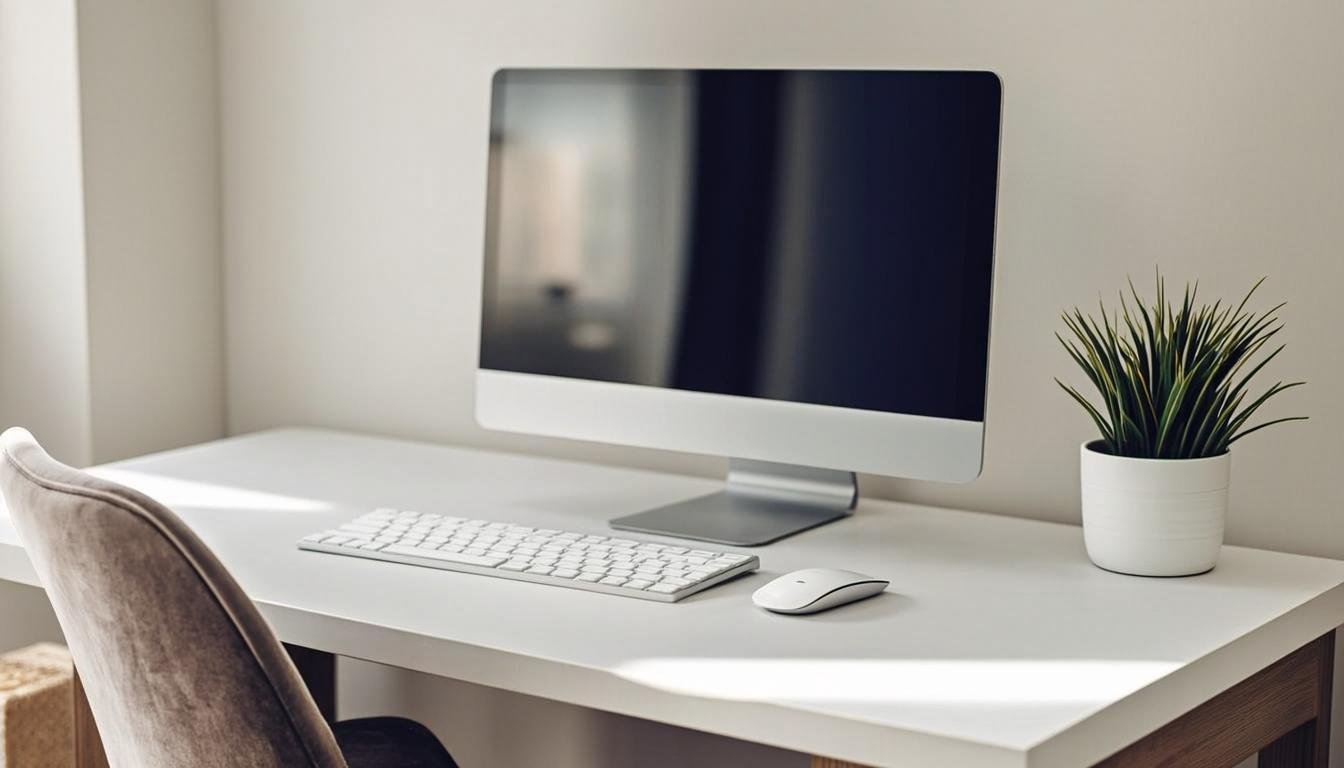
A 48 to 60 inch desk gives you enough room for a laptop or monitor, a keyboard, maybe a microphone. That is it. That is all you need.
If you use two monitors, go 60 inches. If you work off a single laptop screen, 42 to 48 inches is plenty.
Desk materials
Bamboo tops look clean and hold up well. I have spilled coffee on mine more times than I want to admit, and it still looks fine.
Solid wood tops are beautiful but heavy and expensive. MDF with a laminate finish is the budget route and perfectly functional.
Avoid glass desks. They look slick but collect fingerprints, scratch easily, and the glare from overhead lights can mess with your screen viewing.
The chair matters more than the desk
I learned this the hard way. I dropped $800 on a desk and then spent three months sitting on a $120 office chair from a big box store. My lower back hated me.
Your chair is where you spend hours every day. This is not the place to cheap out.
My top picks
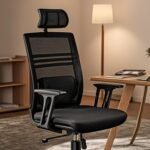
The Herman Miller Aeron is the gold standard. It costs around $1,395, and yes, that is a lot of money. But it lasts 12+ years, has incredible lumbar support, and the mesh keeps you cool during long writing sessions.
If the Aeron is out of reach, the Steelcase Leap is usually around $900 to $1,200 depending on where you buy it. Excellent lumbar support and the arms adjust in every direction.
For a more reasonable budget, the Autonomous ErgoChair Pro at around $349 is a strong contender. It has lumbar support, adjustable armrests, and a breathable mesh back. I used one for two years before upgrading.
The HON Ignition 2.0 sits around $400 and is one of the better budget options. Solid build, decent adjustments, and it does not look like it belongs in a cubicle.
Google's own ergonomic guidelines recommend chairs with adjustable seat height, lumbar support, and armrests. All four of these check those boxes.
Budget does not mean bad
You do not need a $1,400 chair to avoid back pain. What you need is a chair that supports your lower back, lets your feet rest flat on the floor, and keeps your arms at desk height while typing.
I wrote thousands of blog posts on a $200 IKEA Markus before I could afford better. It is not fancy, but it works.
Monitors and displays
Content creators need good screens. Not necessarily expensive ones, but good ones.
Laptop only vs. external monitor
I know plenty of successful bloggers who work entirely off a laptop screen. It works. But adding one external monitor genuinely improves your workflow.
With a monitor, you can have your writing or editing software on one screen and your research, notes, or preview on the other. No more constant window switching.
My monitor recommendations
For most content creators, a 27-inch 4K monitor is the sweet spot. Enough screen real estate to have multiple windows open without feeling cramped.
The Dell UltraSharp U2723QE is my pick. It runs about $620, has a USB-C hub built in, and the color accuracy is great for photo and video work. Wirecutter lists it as their top pick for 4K monitors.
If you want something cheaper, the LG 27UK850-W sits around $450. Good color reproduction, USB-C input, and it looks clean on a minimal desk.
For tight budgets, the Acer Nitro VG270U is around $250. It is technically a gaming monitor, but the 4K resolution and IPS panel make it perfectly fine for content creation.
RTINGS.com does detailed monitor testing including color accuracy and input lag. Check their reviews before buying anything.
Monitor arms
A monitor arm is one of those upgrades that seems unnecessary until you try it. It frees up desk space, lets you position your screen at the right height, and makes your whole setup look cleaner.
The Fully Jarvis Monitor Arm runs about $180. Easy to install, holds up to 30 pounds, and the cable management clips keep things tidy.
The Ergotron HX Monitor Arm is pricier at around $280 but handles heavier monitors better.
A cheap gas spring arm from Amazon for $40 to $60 works fine for lightweight monitors under 15 pounds.
Keyboards
You are going to type thousands of words a week. The keyboard matters.
Mechanical vs. membrane
Mechanical keyboards have better feedback and last longer. They also make noise, which matters if you record audio near your desk.
I use a Keychron K2 wireless mechanical keyboard. It costs about $80 and has Gateron Red switches, which are quiet enough that they do not bleed into my microphone audio.
If noise is a serious concern, go with a low-profile mechanical keyboard like the Keychron K3 at around $79. The switches are barely louder than a regular membrane keyboard.
For a non-mechanical option, the Logitech K380 is $30 and works fine. I used one for a year before switching to mechanical. It is compact, connects to three devices, and the keys feel decent.
The Apple Magic Keyboard with Touch ID is $99 if you are in the Mac ecosystem. Clean design, quiet keys, works flawlessly.
Why I prefer tenkeyless
A tenkeyless keyboard (no number pad) saves desk space. As a content creator, I almost never use a number pad. Cutting it off gives me more room for my mouse and a notepad.
The Keychron K2 is tenkeyless. So is the Keychron K3. Both are 75 percent layouts, which means you still get arrow keys and function keys, just no number pad.
Audio equipment for content creators
If you create video content or record podcasts, audio quality is non-negotiable. Viewers will watch mediocre video. They will not listen to terrible audio.
USB microphones
The Blue Yeti is the most popular beginner microphone, and for good reason. It costs around $130, plugs in via USB, and sounds noticeably better than any laptop microphone.
But it picks up a lot of background noise. If your desk is not in a quiet room, you might struggle.
The Shure MV7 is a step up at around $249. It has both USB and XLR connections, so you can upgrade to a proper audio interface later. Shure is known for broadcast-quality microphones, and the MV7 lives up to that reputation.
The Rode NT-USB is another solid USB option at about $170. Great sound quality, comes with a pop filter and desk stand, and it is less sensitive to background noise than the Blue Yeti.
For a budget pick, the Fifine K688 at $60 punches way above its price. I recommend it all the time to new content creators who do not want to drop $130+ right away.
Boom arms and shock mounts
A boom arm gets the microphone off your desk and positions it right at mouth level. This alone improves audio quality because the mic is closer to you and further from keyboard noise.
The Rode PSA1 is the standard at around $100. It holds most USB microphones and the internal spring system keeps it in position without slipping.
The Elgato Wave Arm at about $90 is a newer option that looks cleaner and has better cable management routing.
Budget boom arms on Amazon for $25 to $40 work fine for lightweight USB mics. Just check the weight capacity before buying.
Headphones
You need headphones for editing audio and video. Not earbuds, actual over-ear headphones.
The Sony WH-1000XM5 at around $348 is my daily driver. Noise cancellation is top tier, sound quality is excellent, and the comfort is unmatched for long editing sessions.
If you want studio monitors instead of consumer headphones, the Audio-Technica ATH-M50x at $149 is a classic choice. Flat frequency response means you hear exactly what your audio sounds like without artificial bass boost.
The Beyerdynamic DT 770 Pro at $159 is another studio favorite. Comfortable for all-day wear and accurate enough for serious audio editing.
For budget options, the Sony MDR-7506 at around $80 has been used in professional studios for decades. They are not flashy, but they sound great and cost less than a nice dinner out.
Lighting
Good lighting makes a huge difference for video content and for your own comfort while working.
Desk lamps
I keep a BenQ ScreenBar Plus on my desk. It costs about $159 and sits on top of my monitor, shining light directly onto my desk without causing screen glare. It is one of my favorite desk purchases.
If the BenQ is too expensive, the Light Bar Monitor Lamp by Quntis runs about $50 on Amazon. Similar concept, clips onto the top of your monitor, and lights up your keyboard area.
For a more traditional look, the Dyson Solarcycle Morph at $649 is absurdly expensive but features adjustable color temperature that shifts throughout the day. I cannot justify that price, but it exists.
A simple IKEA Tertial work lamp for $15 with an LED bulb works fine. Not fancy, but functional.
Video lighting
If you record video at your desk, you need proper lighting. A ring light is the simplest solution.
The Elgato Key Light Mini at $80 is compact, mounts on your monitor, and gives you adjustable color temperature via app control. Perfect for Zoom calls and quick video recordings.
For serious video work, the Neewer 660 LED Video Light at about $70 is a panel light that provides soft, even illumination. Pair two of them and you have a professional-looking lighting setup for under $150.
Cable management
This is where most minimal desk setups fall apart. You can have the cleanest desk in the world, but if cables are dangling everywhere underneath, it still feels cluttered.
Cable trays and clips
A cable management tray attaches under your desk and hides your power strips and excess cable length.
The J Channel Cable Raceway from Amazon at about $15 for a 10-pack is the cheapest way to route cables along the back of your desk. You stick them to the underside and tuck cables inside.
The SimpleCord Under Desk Cable Management Tray runs about $20 and is easier to install. It is a metal basket that screws into the underside of your desk.
Cable sleeves
Cable sleeves bundle multiple cords into one clean tube. The JOTO Cable Management Sleeve at $12 for a 20-inch pack is cheap and effective.
Velcro cable ties at $8 for a 100-pack on Amazon are the simplest solution. Wrap up excess cable length and tuck it behind your monitor or into a tray.
Wireless where possible
The fewer cables on your desk, the better. A wireless mouse, wireless keyboard, and wireless headphones eliminate three cables immediately.
I charge all my wireless devices on weekends. Takes about an hour and everything is ready for the week.
Storage and organization
Minimal does not mean empty. It means intentional.
Desk organizers
A single desk organizer that holds your pens, notepad, phone, and maybe a small plant keeps essentials accessible without cluttering the surface.
The Poppin Desktop Organizer at about $35 is clean and functional. It has compartments for pens, a slot for your phone, and a small tray for paper clips.
The Mesh Desk Organizer from Amazon at $15 does the same job for less money. It is not as pretty, but it works.
What stays on the desk
Here is what I keep on my desk at all times:
My laptop. My monitor. My keyboard and mouse. A notepad and pen. A water bottle. That is it.
Everything else lives in a drawer or on a shelf. External hard drives, charging cables, extra pens, sticky notes, my microphone when I am not recording. All stored out of sight.
What to remove
Old coffee cups. Random receipts. Stacks of paper you "might need someday." Broken cables you keep "just in case." That gadget you bought six months ago and used twice.
Be honest with yourself about what you actually use daily. The rest is visual clutter wearing a disguise.
Software and digital minimalism
Your physical desk is only half the equation. If your computer desktop is a disaster, a clean physical workspace will not save you.
Desktop and dock organization
I keep my Mac dock to seven icons. Browser, email, writing app, photo editor, video editor, notes app, terminal. Everything else lives in Launchpad or Spotlight.
On Windows, clean up your taskbar the same way. Pin only the apps you use multiple times a day. Unpin everything else.
Close browser tabs you are not actively using. I know people who keep 80+ tabs open. That is not multitasking. That is hoarding.
Writing tools
For blogging and content creation, I use a distraction-free writing app. No sidebar menus, no formatting toolbar, just text.
I like Bear for Mac at $30 per year. Clean interface, Markdown support, and it syncs across devices.
Ulysses is another option at $50 per year. More features than Bear but still minimal.
Google Docs is free and works fine for most people. Just close all those toolbars and menus you never use.
Digital decluttering
Clean out your downloads folder weekly. Archive old projects. Delete apps you do not use.
Google's helpful content guidelines favor sites that provide genuine value. The same principle applies to your digital workspace. Remove what does not serve your work.
Desk accessories worth buying
Some accessories genuinely improve a minimal setup. Others are just clutter magnets.
Desk pads
A large felt desk pad protects your desk surface and gives your mouse a smooth tracking area.
The Giantmouse Desk Mat at about $35 is high quality and comes in muted colors that look good without being distracting.
The AmazonBasics Felt Desk Pad at $20 does the same job. I used one for two years and it held up fine.
Wrist rests
If you type a lot, a wrist rest prevents strain. The Gimhae Memory Foam Keyboard Wrist Rest at about $16 is comfortable and does not take up much desk space.
The wrist rest from Keychron that matches their keyboards is about $25 and looks cohesive if you use their boards.
Desk plants
One small plant adds life to a minimal setup without creating clutter. A pothos in a small pot is nearly impossible to kill and looks great on a desk.
Succulents work too. They need almost no care and come in tiny pots that fit anywhere.
Monitor light bars
I already mentioned the BenQ ScreenBar, but it deserves another callout here. It is the single best lighting purchase I have made for my desk. No desk lamp taking up surface space, no glare on my screen, just clean light exactly where I need it.
Minimal desk setups for different content types
Not every content creator works the same way. Here is how to adapt a minimal setup for different types of work.
For bloggers and writers
Bloggers need even less gear than video creators. A laptop or laptop plus monitor, a good keyboard, comfortable chair, and decent lighting.
Skip the microphone unless you podcast. Skip the video lighting. Focus your budget on a great chair and a comfortable keyboard.
The total investment here can be under $500 if you already own a laptop. Chair at $300, keyboard at $80, desk pad at $20, lamp at $50.
If you want to learn skills that make you a better blogger, check out the skills-learning section on BloggingJobsHub.com. Knowing how to write SEO-optimized content makes your workspace investment pay for itself faster.
For YouTubers and video creators
Video creators need more gear. A good camera, microphone, video lighting, and a monitor with accurate color reproduction.
But you can still keep it minimal. A single good microphone on a boom arm. One key light and one fill light. One monitor for editing.
The Logitech Brio 4K webcam at about $170 is a solid camera for most YouTube content. If you want something better, the Sony ZV-1 at $798 is a purpose-built vlogging camera with excellent autofocus.
For video editing, color-accurate monitors matter more. The Dell UltraSharp U2723QE I mentioned earlier covers 98 percent of DCI-P3, which is good enough for most YouTube work.
For podcasters
Podcasters need a quiet space and good audio gear. A minimal podcasting desk has one microphone, a boom arm, headphones, and a computer.
The Shure MV7 at $249 or the Audio-Technica AT2020 at $100 with a Focusrite Scarlett Solo audio interface at $120 is a complete podcasting setup for under $400.
Add acoustic panels to your walls if your room is echoey. The ATS Acoustics Panels at about $40 each make a noticeable difference. Four panels on the walls behind and beside you can deaden room echo significantly.
How to build your minimal setup on a budget
You do not need to spend thousands of dollars to create a functional workspace.
Under $300 total
Use the desk you already have. Or buy the SHW standing desk at $280. Add a Logitech K380 keyboard at $30. A mouse pad at $15. An IKEA lamp at $15. That is a functional setup for under $350.
Your chair should be the biggest investment if you are on a budget. A $200 chair now saves you from $2,000 in physical therapy later.
$500 to $1,000 budget
At this level, you can get a proper standing desk. The FlexiSpot E7 at $500. An Autonomous ErgoChair Pro at $349. A Keychron K3 keyboard at $79. A BenQ ScreenBar at $159.
That is about $1,087 total. Skip the ScreenBar and you are under $1,000.
$1,500 to $2,500 budget
Now we are talking serious setup territory. UPLIFT V2 desk at $780. Herman Miller Aeron at $1,395. Dell U2723QE monitor at $620. Keychron K2 keyboard at $80. Monitor arm at $180.
That totals roughly $3,055. You can trim this by choosing the Steelcase Leap over the Aeron and a budget monitor arm.
Daily habits for maintaining a minimal workspace
Setting up a clean desk is easy. Keeping it clean is the hard part.
The 5-minute reset
At the end of every workday, I spend five minutes resetting my desk. Put the notepad back in its spot. Empty the water bottle. Wipe down the keyboard. Put away anything that drifted onto the desk during the day.
This single habit keeps my workspace clean without requiring a deep clean every week.
Weekly deep clean
Once a week, I take everything off the desk, wipe it down, check all cables, and put everything back. Takes 15 minutes.
Monthly audit
Once a month, I look at every item on my desk and ask if I have used it in the past 30 days. If not, it goes into a drawer or gets donated.
This prevents the slow creep of clutter that turns a minimal setup into a maximal mess.
Minimal desk setup mistakes to avoid
I have made most of these mistakes. Learn from my failures.
Buying too much too fast
When I first got into content creation, I bought a microphone, a ring light, a second monitor, a webcam, a boom arm, and a capture card in the same week. Half of it sat unused for months.
Start with the basics. A good desk, chair, and keyboard. Add gear only when you have a specific need for it.
Prioritizing looks over function
That desk that looks amazing on Pinterest might wobble when you type on it. That chair that matches your aesthetic might give you back pain after two hours.
Function first. Looks second. Always.
Ignoring ergonomics
Your desk height should let your elbows rest at 90 degrees while typing. Your monitor should be at eye level. Your chair should support your lower back.
If any of these are off, you will feel it in your neck, shoulders, or back. Google's ergonomic workspace guidelines are worth reading before you set up your desk.
Cable management as an afterthought
Plan your cable management before you set up your gear. It is way harder to clean up cables after everything is plugged in and arranged.
Run cables through the desk grommet holes. Use a cable tray under the desk. Bundle excess length with velcro ties. Do this on day one.
Finding content creation work
A clean workspace only matters if you have work to do. If you are looking for content creation jobs, BloggingJobsHub.com is created by an individual to help you find AI, WordPress, Article Writing and Blogging Jobs, and teach you skills to work long-term.
You can browse opportunities in blogging, content writing, freelancing, and remote jobs. The skills-learning resources help you build the abilities that clients actually pay for.
A minimal desk setup paired with real skills and steady work is a solid foundation for a content creation career.
Minimal desk setup for content creators: product price summary
Here is a quick reference of everything I mentioned with current approximate prices:
- UPLIFT V2 Standing Desk: $780
- FlexiSpot E7 Pro Standing Desk: $500
- SHW 55-inch Standing Desk: $280
- Herman Miller Aeron Chair: $1,395
- Steelcase Leap Chair: $900-$1,200
- Autonomous ErgoChair Pro: $349
- HON Ignition 2.0 Chair: $400
- IKEA Markus Chair: $200
- Dell UltraSharp U2723QE Monitor: $620
- LG 27UK850-W Monitor: $450
- Acer Nitro VG270U Monitor: $250
- Fully Jarvis Monitor Arm: $180
- Ergotron HX Monitor Arm: $280
- Keychron K2 Keyboard: $80
- Keychron K3 Keyboard: $79
- Logitech K380 Keyboard: $30
- Apple Magic Keyboard: $99
- Blue Yeti Microphone: $130
- Shure MV7 Microphone: $249
- Rode NT-USB Microphone: $170
- Fifine K688 Microphone: $60
- Rode PSA1 Boom Arm: $100
- Elgato Wave Arm: $90
- Sony WH-1000XM5 Headphones: $348
- Audio-Technica ATH-M50x: $149
- Beyerdynamic DT 770 Pro: $159
- Sony MDR-7506: $80
- BenQ ScreenBar Plus: $159
- Quntis Monitor Light Bar: $50
- Elgato Key Light Mini: $80
- Neewer 660 LED Video Light: $70
- JOTO Cable Management Sleeve: $12
- SimpleCord Cable Tray: $20
- Giantmouse Desk Mat: $35
- AmazonBasics Felt Desk Pad: $20
- Logitech Brio 4K Webcam: $170
- Sony ZV-1 Camera: $798
Prices change frequently. Check current pricing on Amazon, Best Buy, or the manufacturer's website before purchasing.
FAQ: minimal desk setup for content creators
How much does a minimal desk setup cost?
You can build a functional minimal setup for under $300 if you already own a laptop. A decent chair and keyboard are your most important purchases. A mid-range setup runs $500 to $1,000. A premium setup with a standing desk, ergonomic chair, and quality monitor runs $1,500 to $3,000. Start with the essentials and upgrade as your income grows.
Do I need a standing desk for content creation?
No, you do not need one. A standing desk is a nice-to-have, not a requirement. What matters more is that your sitting desk is at the right height for typing and your chair supports your lower back. If you can afford a height-adjustable desk, the ability to switch between sitting and standing helps reduce fatigue during long writing and editing sessions.
What is the most important item in a minimal desk setup?
Your chair. Without question. You will spend thousands of hours sitting in it. A bad chair causes back pain, neck pain, and poor posture that affects your productivity. Invest in a chair with adjustable seat height, lumbar support, and armrests. Everything else on your desk is secondary to the chair.
Can I create content with just a laptop?
Absolutely. Many successful bloggers and YouTubers started with nothing but a laptop and a kitchen table. A laptop is sufficient for writing, basic photo editing, and video editing up to 1080p. Add an external monitor when you can afford it, but do not let a lack of gear stop you from creating content now.
How do I keep my desk minimal when I have a lot of gear?
Use a cable management tray under your desk to hide power strips and excess cables. Store items you do not use daily in a drawer or shelf. Use a monitor arm to free up desk surface. Keep only your active tools on the desk: keyboard, mouse, notepad, water. Everything else gets put away when you are done using it.
What size desk do content creators need?
Most content creators do fine with a 48 to 60 inch desk. If you work off a single laptop, 42 to 48 inches is plenty. If you use two monitors, go with 60 inches. Larger desks are not better. They just collect more clutter. The goal is to have enough room for your active tools without empty space that tempts you to fill it with stuff.
Is a mechanical keyboard necessary for content creation?
No. A good membrane keyboard works fine. Mechanical keyboards offer better typing feel and durability, which matters when you type thousands of words per week. But they cost more and make noise that can interfere with audio recording. If you record video or audio at your desk, get a quiet mechanical keyboard or stick with a membrane board.
How do I reduce cable clutter on my desk?
Start by going wireless where possible: wireless mouse, wireless keyboard, wireless headphones. For remaining cables, use velcro ties to bundle excess length. Run cables through desk grommets or along the back edge. Install a cable management tray under your desk to hold your power strip and cable bundles. A 10-minute cable cleanup session makes a huge difference.
What lighting is best for a minimal content creation desk?
A monitor light bar like the BenQ ScreenBar or Quntis Light Bar is ideal because it lights your desk without causing screen glare or taking up surface space. For video recording, add a dedicated key light like the Elgato Key Light Mini. Avoid desk lamps that take up too much surface area or create harsh shadows on your workspace.
Do I need a microphone for content creation?
It depends on what you create. Bloggers and written content creators do not need one. YouTubers, podcasters, and anyone recording video or audio need a decent microphone. The Fifine K688 at $60 is a solid budget option. The Shure MV7 at $249 is professional quality. Even a $30 lapel mic from Amazon is better than your laptop microphone.
Where should I look for content creation jobs?
BloggingJobsHub.com is created by an individual to help you find AI, WordPress, Article Writing and Blogging Jobs, and teach you skills to work long-term. You can browse job listings in blogging, content writing, freelancing, and remote positions. The site also offers skills-learning resources to help you build capabilities that make you more hireable and able to charge higher rates.
How often should I clean and reorganize my desk?
Do a 5-minute reset at the end of every workday. Put items back in their place, wipe down surfaces, and empty any cups or trash. Once a week, do a deeper clean where you wipe everything down and check cable management. Once a month, audit your desk items and remove anything you have not used in the past 30 days. This system keeps your workspace clean without requiring big cleaning sessions.

Other Articles

Best laptops for blogging and SEO work (2025 guide)
Best chairs for writers who sit all day