
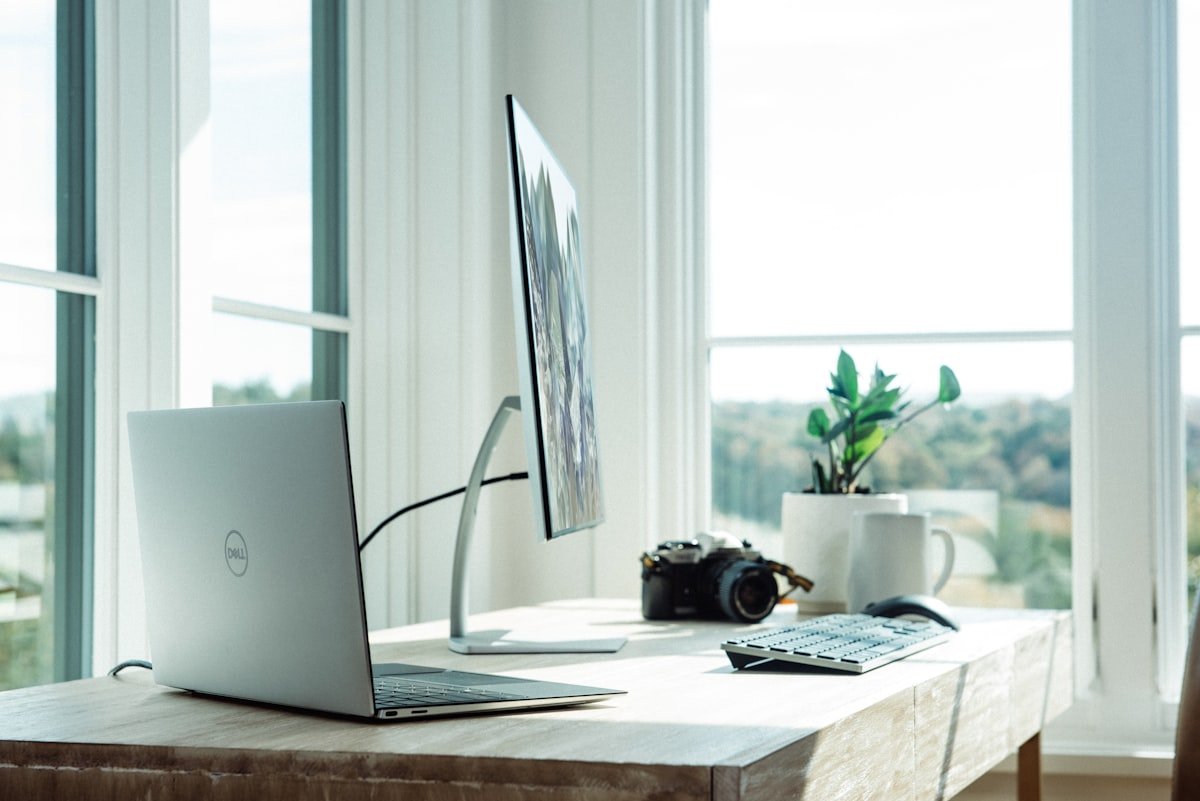

A monitor light bar is one of those upgrades that seems unnecessary until you try one — and then you wonder how you ever worked without it. Unlike a traditional desk lamp that takes up surface space and can create glare on your screen, a monitor light bar sits on top of your monitor and directs light precisely onto your desk without illuminating the screen itself. The result is a perfectly lit workspace that looks cleaner, feels more professional, and causes significantly less eye strain during long writing sessions.
In this guide, I will compare the best monitor light bars across every budget range, from $15 budget options to $180 premium models. I have tested and researched these products specifically for writers, bloggers, and content creators who need comfortable task lighting without screen glare. I will also cover what to look for when choosing a light bar, how to install and adjust one properly, and answer the most common questions about this increasingly popular desk accessory.
Why a Monitor Light Bar Beats a Traditional Desk Lamp
Zero Screen Glare
The single biggest advantage of a monitor light bar over a desk lamp is the elimination of screen glare. Traditional desk lamps often cast light onto your monitor, creating reflections that wash out colors and make text harder to read. A properly designed monitor light bar uses an asymmetric optic design that directs light downward onto your desk while preventing any light from hitting the screen. According to the American Academy of Ophthalmology, reducing glare is one of the most effective ways to prevent digital eye strain during extended computer use.
Space-Saving Design
Writers and content creators tend to have crowded desks — monitors, keyboards, mice, notepads, coffee cups, and cables compete for limited surface area. A desk lamp takes up valuable real estate and adds visual clutter. A monitor light bar mounts above your screen, keeping your desk surface completely clear. This is especially valuable for small desks or minimalist setups where every inch of space matters.
Bias Lighting Benefits
Many monitor light bars include a rear light strip that provides bias lighting — a soft glow behind your monitor that reduces the contrast between the bright screen and the dark surrounding area. According to research from the National Institutes of Health, bias lighting reduces eye fatigue, improves perceived contrast on the screen, and can reduce the severity of headaches associated with prolonged screen time. Some premium models let you adjust the bias light color independently of the front-facing light.
Even, Professional-Looking Lighting
Monitor light bars produce a wide, even wash of light across your entire desk surface. Unlike desk lamps that create a bright hotspot directly below them and darker areas at the edges, a well-designed light bar illuminates the full width of your workspace uniformly. This even lighting looks better on camera (useful for video calls and streaming) and is more comfortable for your eyes because there are no harsh transitions between bright and dark areas.
What to Look for in a Monitor Light Bar
Asymmetric Optic Design
The most important feature of any monitor light bar is its optic design. Quality light bars use an asymmetric reflector or lens that angles the light downward at about 30 to 45 degrees, illuminating the desk surface while preventing light from spilling upward onto the screen. Budget models without this design often produce noticeable glare, defeating the main purpose of a monitor light bar. Look for products that specifically mention “asymmetric optics,” “no screen glare,” or “anti-glare design.”
Color Temperature Adjustment
Adjustable color temperature is essential for a writing workspace. As covered in our guide to the best budget desk lamps for bloggers and writers, cool white light (5000K+) is best for daytime alertness, while warm white light (2700K-3000K) is better for evening use to protect your sleep cycle. The best monitor light bars offer at least three color temperature presets, while premium models provide smooth continuous adjustment across the full range.
Brightness and Dimming
Look for a light bar with at least 300 to 500 lumens of front-facing light. This is sufficient for most desk tasks without being overwhelming. Stepless dimming is strongly preferred over fixed brightness levels because it lets you fine-tune the light to match your room lighting and personal preference. The best models offer both auto-dimming (adjusting based on ambient light) and manual control.
Monitor Compatibility
Most monitor light bars attach with a counterweight or clamp system that sits on top of your monitor. Check the compatibility range — most support monitors between 0.4 and 2 inches thick. Ultra-thin monitors with bezels less than 0.4 inches may require adhesive mounting pads or special adapters. Some light bars also include a webcam mount, which is a convenient bonus if you want both accessories on top of your monitor.
Make sure the light bar is wide enough for your monitor. A 15-inch light bar covers monitors up to 24 inches, while a 20-inch bar is needed for 27-inch monitors, and a 24-inch bar for 32-inch ultrawide displays. If the bar is too narrow for your monitor, the edges of your desk will be darker than the center.
Power Source
USB-C power is the most convenient option because you can plug the light bar directly into your monitor or laptop. Some models also support USB-A. A few premium models include a wireless remote control for adjusting brightness and color temperature, which is useful if the touch controls on the bar itself are hard to reach. Avoid models that require a wall adapter if possible — USB power keeps your setup cleaner with fewer cables.
Best Budget Monitor Light Bars Under $30
1. Quntis Monitor Light Bar — Best Budget Overall
The Quntis Monitor Light Bar is the most frequently recommended budget alternative to the BenQ ScreenBar on Reddit, and at $15 to $25, it costs a fraction of the price while delivering surprisingly similar performance. The asymmetric optic design effectively prevents screen glare, and the light bar provides even illumination across a wide desk area.
The Quntis offers three color temperature presets (warm white, natural white, and cool white) and ten brightness levels controlled by touch-sensitive buttons on the end of the bar. The auto-dimming feature adjusts brightness based on ambient light, which is a nice touch at this price point. The USB-A power cable is 4.9 feet long, adequate for most setups.
The build quality is good for the price with a sturdy aluminum housing and a weighted counterweight that grips the monitor securely. The clamp does not leave marks on the monitor bezel. Some users report that the touch controls can be a bit finicky — you sometimes need to tap them precisely — but this is a minor inconvenience. A USB-A port on the back of the counterweight lets you use it as a pass-through USB hub, which is a useful bonus.
Key Specs: Asymmetric optics, 3 color temps, 10 brightness levels, auto-dimming, USB-A powered, USB pass-through, aluminum body, fits 0.4-1.2 inch monitors, 4.9ft cable.
2. Tomons Monitor Light Bar — Cheapest Decent Option
The Tomons Monitor Light Bar at around $12 to $18 is one of the most affordable options that still delivers acceptable performance. It provides three color temperature modes and ten brightness levels through simple touch controls. The asymmetric design prevents most screen glare, though it is not quite as effective as the Quntis or BenQ in eliminating all reflections.
The build quality reflects the low price — the housing is primarily plastic rather than aluminum, and the counterweight is lighter. This means the bar may feel less stable on thicker monitors. However, for basic desk illumination and bias lighting, the Tomons gets the job done at a price that is hard to argue with.
Key Specs: 3 color temps, 10 brightness levels, USB-A powered, plastic housing, fits 0.2-1.2 inch monitors, touch controls.
Best Monitor Light Bars Under $80
3. Xiaomi Monitor Light Bar — Best Value Mid-Range Option
Xiaomi entered the monitor light bar market with a product that punches well above its weight. The Xiaomi Monitor Light Bar costs $50 to $70 and offers features that rival premium models costing twice as much. The asymmetric optic design is highly effective — multiple reviewers on YouTube have compared it directly to the BenQ ScreenBar and found it delivers 80 to 90 percent of the performance at half the price.
The standout feature is the rear ambient light strip that provides bias lighting. Unlike budget models that only illuminate the desk, the Xiaomi casts a soft glow behind your monitor that reduces eye strain and creates a more immersive viewing experience. The bias light can be controlled independently of the front-facing light.
Color temperature adjustment is smooth and continuous from 2700K to 6500K, controlled by a sleek wireless remote that attaches magnetically to the side of the light bar. The remote is a significant convenience upgrade over touch controls because you can adjust the light without reaching up to the top of your monitor. Brightness is steplessly adjustable, and the light remembers your last settings when you turn it back on.
Key Specs: Asymmetric optics with rear bias light, 2700K-6500K continuous, stepless dimming, wireless remote, USB-C powered, aluminum body, fits 0.4-1.5 inch monitors.
4. BenQ ScreenBar Plus — Best Named-Brand Mid-Range
The BenQ ScreenBar Plus at around $100 to $120 is the entry point into BenQ is premium monitor light bar lineup. While it lacks the wireless controller and rear ambient light of the ScreenBar Halo, it delivers BenQ is industry-leading asymmetric optic design at a more accessible price. The no-glare performance is the benchmark that all other light bars are measured against — if you want guaranteed zero screen glare, BenQ is the safe choice.
The ScreenBar Plus includes a physical dial controller that sits on your desk, connected to the light bar by a cable. This dial controls both brightness and color temperature with a smooth, satisfying feel. The dial also serves as a desk clamp for the cable, keeping your setup tidy. Color temperature adjusts from 2700K to 6500K with continuous dimming, controlled by simply rotating or pressing the dial.
The light output is rated at 500 lumens at maximum brightness, which is brighter than most competitors. BenQ is auto-dimming feature uses an ambient light sensor to adjust brightness based on room conditions, though some users prefer to disable it and control brightness manually.
Key Specs: BenQ asymmetric optics, 500 lumens, 2700K-6500K continuous, physical desk dial controller, USB-A powered, auto-dimming, aluminum body, fits most monitors.
Best Premium Monitor Light Bars
5. BenQ ScreenBar Halo — The Gold Standard
The BenQ ScreenBar Halo ($170 to $190) is widely regarded as the best monitor light bar on the market, and for good reason. It combines BenQ is no-glare optic design with a rear bias light, wireless controller, and premium build quality into a package that is virtually flawless. If budget is not a constraint, this is the one to buy.
The Halo adds a significant rear ambient light strip that the ScreenBar Plus lacks. This bias lighting creates a soft halo effect behind your monitor that dramatically reduces eye strain and makes the screen appear to have deeper blacks and more vibrant colors. You can control the front and rear lights independently through the wireless controller — a feature that no budget model offers.
The wireless controller is a sleek puck that attaches magnetically to any metal surface on your desk. It provides intuitive control over brightness, color temperature, and rear light intensity. The controller also includes buttons for preset modes (reading, studying, relaxing, and screen sharing) that instantly optimize the light settings for common scenarios.
The build quality is exceptional with a solid aluminum construction that feels like a premium product. The asymmetric optics are the most effective in the industry, producing absolutely zero screen glare even on glossy monitors. At 900 lumens (front) plus 300 lumens (rear), it is also one of the brightest options available.
Key Specs: BenQ asymmetric optics, 900 lumens front + 300 lumens rear, 2700K-6500K, wireless controller, 4 preset modes, independent front/rear control, USB-A powered, premium aluminum body.
Comparison Table
| Light Bar | Price | Lumens | Color Temp | Bias Light | Best For |
|---|---|---|---|---|---|
| Tomons | $12-$18 | ~300 | 3 presets | No | Tightest budget |
| Quntis | $15-$25 | ~400 | 3 presets | No | Best budget value |
| Xiaomi | $50-$70 | ~500 | Continuous | Yes | Best mid-range value |
| BenQ ScreenBar Plus | $100-$120 | 500 | Continuous | No | BenQ optics, desk dial |
| BenQ ScreenBar Halo | $170-$190 | 900+300 | Continuous | Yes | Premium, best overall |
Installation and Setup Tips
Positioning the Light Bar
The light bar should sit centered on top of your monitor with the light-emitting edge facing forward. The bottom of the bar should be just below the top edge of the monitor bezel, ensuring the light clears the screen and illuminates your desk. If the bar sits too high, the light will miss the near edge of your desk. If it sits too low, it may partially block your view of the screen.
Avoiding Obstacles
Webcams, monitor speakers, and other accessories mounted on top of your monitor can interfere with the light bar is position. If you use a webcam, mount it to the side of the light bar or use a light bar that includes a webcam mount. Some models, like the BenQ ScreenBar Halo, include a built-in webcam mount that positions the camera above the light bar.
Adjusting for Your Room Lighting
Start with the light bar at medium brightness and natural white color temperature (around 4000K), then adjust from there. If your room has strong overhead lighting, you may need the light bar at maximum brightness to be noticeable. If your room is dim, start at a lower brightness to avoid excessive contrast between the lit desk and the dark surroundings. The goal is balanced, comfortable illumination — not a brightly lit desk in a pitch-black room.
Advanced Features to Consider
Wireless Remote Controls
While most monitor light bars use touch controls directly on the bar, premium models like the BenQ ScreenBar Halo and the Xiaomi Monitor Light Bar include wireless remote controls. These remotes let you adjust brightness and color temperature without reaching up to the top of your monitor. The BenQ controller is a magnetic puck that sticks to any metal surface on your desk, while the Xiaomi remote attaches magnetically to the light bar itself. If your monitor is large or mounted high, a wireless remote is a significant quality-of-life improvement.
Auto-Dimming Sensors
Some light bars include ambient light sensors that automatically adjust brightness based on the light in your room. When the room gets darker in the evening, the light bar dims to match. When sunlight streams through your window during the day, it brightens to maintain consistent desk illumination. This feature eliminates the need to manually adjust the light throughout the day. The BenQ ScreenBar Plus and Halo both include this feature, as does the Quntis.
USB Pass-Through Ports
Several budget light bars include USB pass-through ports in their counterweight or power block. This lets you plug the light bar into one USB port on your monitor or computer and use the additional port for another device. It is a small but useful feature that effectively gives you an extra USB port. The Quntis and EppieBasic light bars both offer USB pass-through.
Webcam Mount Integration
If you use a webcam mounted on top of your monitor, you may run into positioning conflicts with a light bar. Some models, like the BenQ ScreenBar Halo, include a built-in webcam mount that positions the camera above the light bar. Other models sell separate webcam mounting accessories. If you plan to use both a light bar and a webcam, check for compatibility before buying — or choose a model that integrates both accessories.
Screen Sync and Smart Features
The most advanced monitor light bars offer screen-syncing features that match the light bar is color temperature or ambient light color to the content on your screen. For example, when you are watching a warm-toned video, the bias light behind the monitor shifts to a warm color, creating a more immersive viewing experience. While these features are primarily marketed to gamers and movie watchers, they can also enhance the comfort of long writing sessions by creating a more cohesive visual environment.
Monitor Light Bar vs. Desk Lamp: Which Should You Choose?
The answer depends on your specific situation:
Choose a light bar if: You want to minimize desk clutter, you have a glossy monitor prone to glare, you prefer even lighting across your full desk width, or you want bias lighting behind your monitor. Light bars are the better choice for most modern writing setups.
Choose a desk lamp if: You need to illuminate specific areas of your desk (like a notepad or physical documents), you prefer the aesthetic of a desk lamp, you need a charging port on your lamp, or your monitor is not compatible with light bar mounting (very thin bezels, curved monitors in some cases).
For the best of both worlds, some writers use a monitor light bar as their primary desk illumination and a small desk lamp as a secondary light for reading physical documents or providing task lighting in a specific area.
Common Questions
Do monitor light bars work on curved monitors?
Most light bars work fine on gently curved monitors (1500R to 1800R curvature). However, very aggressively curved monitors (1000R) may cause fit issues because the light bar is straight. Some manufacturers make curved light bars specifically for these monitors. If you have an aggressively curved monitor, check the compatibility specifications carefully before buying.
Will a light bar damage my monitor?
No. Monitor light bars attach using gravity-weighted counterweights or gentle clamps that do not use adhesive or require any modifications to your monitor. They simply rest on top of the bezel. As long as you follow the weight limits (most light bars weigh less than 2 pounds), there is no risk of damage.
Can I use a light bar with a laptop?
Some light bars include laptop adapters that let you mount them on a laptop screen. However, laptop screens are much thinner than monitors, and the weight of the light bar may cause the screen to tilt backward. This is generally not recommended for extended use. A better option for laptop users is a compact USB desk lamp that clips to the side of the screen rather than sitting on top.
Do cheap light bars really prevent screen glare?
Most budget light bars from brands like Quntis and Xiaomi include asymmetric optics that effectively prevent glare. However, the quality of the optic design varies. The very cheapest options (under $15) may not completely eliminate glare, especially on glossy monitors. If glare prevention is your top priority, the BenQ ScreenBar is the most reliable choice, followed by the Xiaomi and Quntis.
How long do monitor light bars last?
LED light bars typically last 30,000 to 50,000 hours of use. At 8 hours per day, that is 10 to 17 years of use. The LEDs themselves rarely fail — the more common failure points are the USB cable connection and the touch controls. Quality brands like BenQ offer 2 to 3-year warranties that cover these issues.
Troubleshooting Common Monitor Light Bar Issues
The Light Bar Is Too Bright
If the lowest brightness setting is still too bright — which can happen in very dark rooms — check if your light bar has an “eco” or “night” mode. Some models offer a very dim setting specifically for dark environments. If your light bar does not have this, you can partially cover the light-emitting edge with a small piece of translucent tape or a thin strip of paper to diffuse and reduce the light output. This is a common hack in the monitor light bar community.
Screen Glare Is Still Visible
If you still see glare on your monitor with a light bar installed, first check that the light bar is positioned correctly — it should be tilted slightly forward so the light goes downward, not backward toward the screen. Some light bars have an adjustable tilt mechanism for this purpose. Also, make sure your monitor is not a high-gloss model, as glossy screens reflect light more than matte screens. If you have a glossy monitor and cannot eliminate glare completely, consider adding a matte screen protector film.
The Light Bar Keeps Sliding Off
If the counterweight does not grip your monitor securely, the light bar may slide forward or backward. Check that the counterweight is properly positioned behind the monitor bezel — it should rest flush against the back of the monitor with the cable running down the back. If your monitor has an unusually thin bezel or a curved back, the counterweight may not fit properly. In this case, use the included adhesive mounting pads or consider a different light bar with a more secure mounting system.
The USB Port Does Not Provide Enough Power
Most light bars draw 5 to 10 watts of power, which is within the specification of standard USB-A and USB-C ports. However, some older monitors or budget USB hubs may not provide sufficient power, causing the light bar to flicker or not turn on at all. If this happens, try plugging the light bar directly into your computer is USB port or a powered USB hub rather than through the monitor. The BenQ ScreenBar includes a dedicated power adapter for situations where USB power is insufficient.
Building the Complete Writing Workspace
A monitor light bar is one component of an optimized writing environment. To create the most comfortable and productive workspace possible, consider how it integrates with your other desk accessories and equipment.
If you are setting up a workspace from scratch, our comprehensive guide on the best budget desk setup for beginner bloggers covers every element from desk and chair to lighting and organization. The monitor light bar is the lighting upgrade we recommend most often for writers who spend their entire workday in front of a screen.
For managing the cables that come with a monitor light bar and your other desk accessories, our guide on cable management ideas for a clean desk setup covers budget-friendly solutions for hiding and organizing the wires under and around your desk.
Pair your monitor light bar with quality headphones for the ultimate focused writing environment. Our article on the best budget headphones for writers and content creators covers noise-cancelling options that block distractions while your light bar provides the perfect illumination.
Final Recommendation
For most writers and content creators, the Quntis Monitor Light Bar ($15-$25) is the best choice. It delivers the core benefits of a monitor light bar — no screen glare, even desk illumination, and adjustable color temperature — at a price that makes it an easy impulse buy. The asymmetric optic design works well, and the build quality is surprisingly good for the price.
If you want bias lighting and a more premium experience without the BenQ price tag, the Xiaomi Monitor Light Bar ($50-$70) is the best mid-range option. The wireless remote, continuous color temperature adjustment, and rear ambient light strip make it feel like a premium product at half the price of the BenQ Halo.
And if budget is no object and you want the absolute best, the BenQ ScreenBar Halo ($170-$190) delivers a flawless experience with the best optic design in the industry, independent front and rear lighting, and a premium build that will last for years. It is the last monitor light bar you will ever need to buy.
Whatever you choose, a monitor light bar is one of the most impactful upgrades you can make to your writing workspace. The combination of glare-free desk lighting, space-saving design, and bias lighting benefits makes it a clear winner over traditional desk lamps for most computer-based work setups. Once you try one, you will wonder how you ever managed without it.


Best USB mics for freelancers
Best ring lights for online meetings and YouTube